
Plot Designer
Summary
Lays out a block of rectangular research plots — so many plots end to end along a plot direction and so many side by side across it, each of a given length and width — and repeats the block for every replication, giving each replication the rate values in a fresh random order. The block starts at an anchor point, the back-left corner of the first plot when you stand on it facing along the plot direction. In the Plot Designer window you click the anchor on the map and draw the direction along a fenceline or a field edge, with a live preview of the plots; the Plot Designer geoprocessing tool does the work, so every run is recorded in the geoprocessing History and can be repeated, batched or scripted.
The output is a polygon feature class of plots carrying the replication number, the plot number, a combined plot ID, the rate, the plot center and the bearing, with optional feature classes of the plot center points and of the plot centerlines. The plots are built in a local equidistant projection centered on the anchor, so every edge has its true ground length and the direction is a true bearing, whatever the map's projection.
Plot Designer is a port of the Plot Designer tool of the CropCentric ArcGIS tools that Jeff Jenness built with Matt Wiebers for ArcMap (Jenness and Wiebers 2018). The ArcMap version drew the plots as graphics for the user to drag into place; this version anchors the block where you click and writes a feature class directly, leaving any fine adjustment to ArcGIS Pro's own editing tools.
Usage
The block. A replication holds plots along the direction × plots across rectangles, each length by width. The plots along the direction are laid end to end along the bearing; the plots across are laid side by side to the right of them. The rate list must hold exactly one value per plot of a replication; the window keeps the list in step with the plot count, filling new slots with zeros as the CropCentric dialog did. Every replication receives the same rate values, shuffled anew each time — the randomized block of classic field trials. A random seed repeats the same shuffle.
Where it goes. The anchor is the back-left corner of the first plot, facing along the primary axis direction: plots extend forward along the bearing and to the right across it. In the window, click the anchor on the map or take the lower-left corner of the field layer's extent (the selection's extent when features are selected); in the geoprocessing tool, type the anchor's X and Y, naming their coordinate system when it differs from the field layer's, or give only a field layer and let its corner serve. The replications are arranged side by side across the direction or end to end along it, separated by a gap.
A worked example
We have a field that we want to lay some sample plots in. We might put the plots in a small part of the field or spread them over most of it; in this example we cover most of the field with plot rectangles, and we want their centerlines and center points as well.
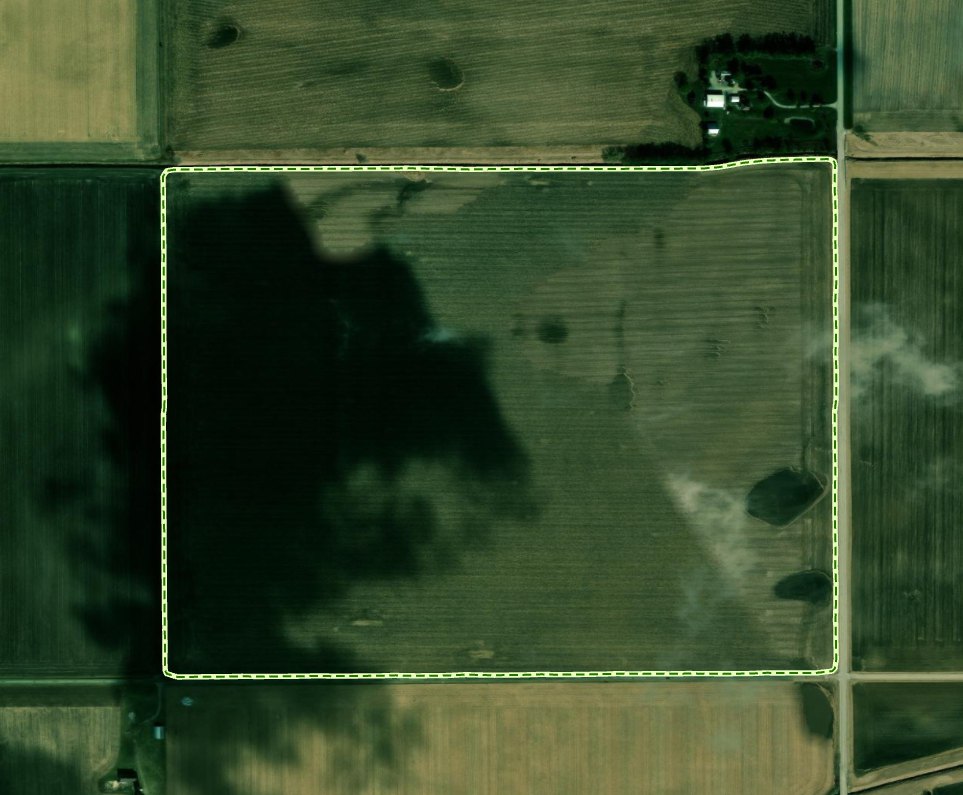
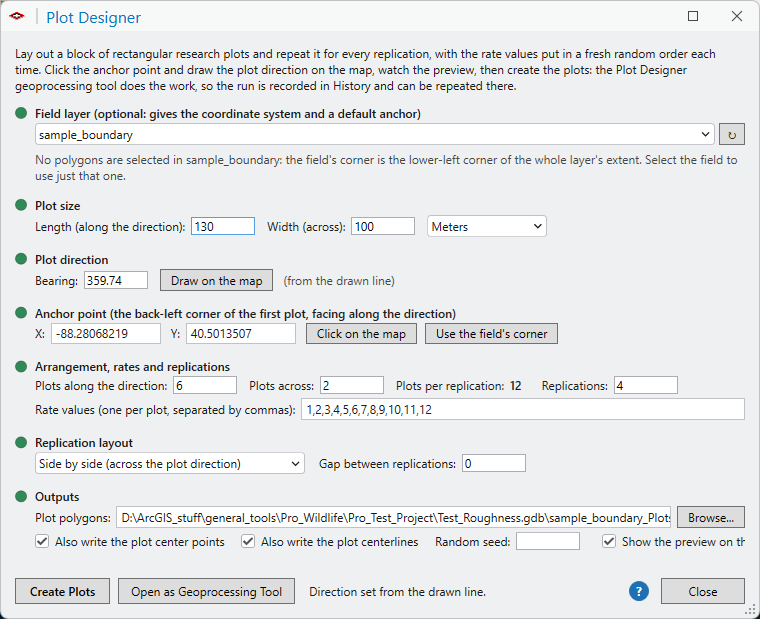
We open the Plot Designer window from the Geometric Tools gallery and fill it out. The field layer is sample_boundary. Each plot is 130 meters long and 100 meters wide. The plot direction, 359.74 degrees, came from a line drawn on the map along the field's western edge with Draw on the map; the anchor, the field's southwest corner, came from a click on the map with Click on the map. Each replication holds six plots along the direction and two across, twelve plots with the rate values 1 through 12, and there are four replications laid side by side with no gap. Both optional outputs are checked. Every light is green, so the plots can be created.
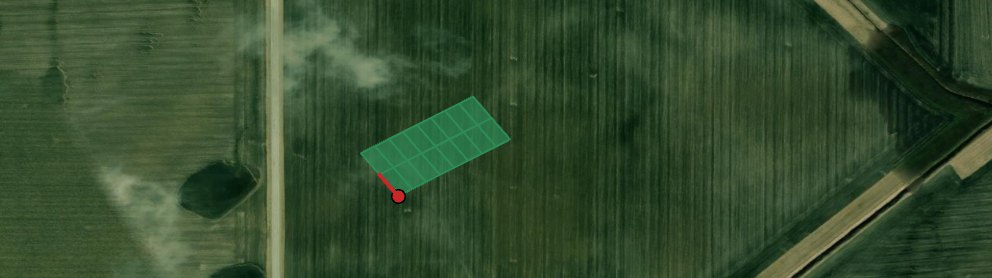
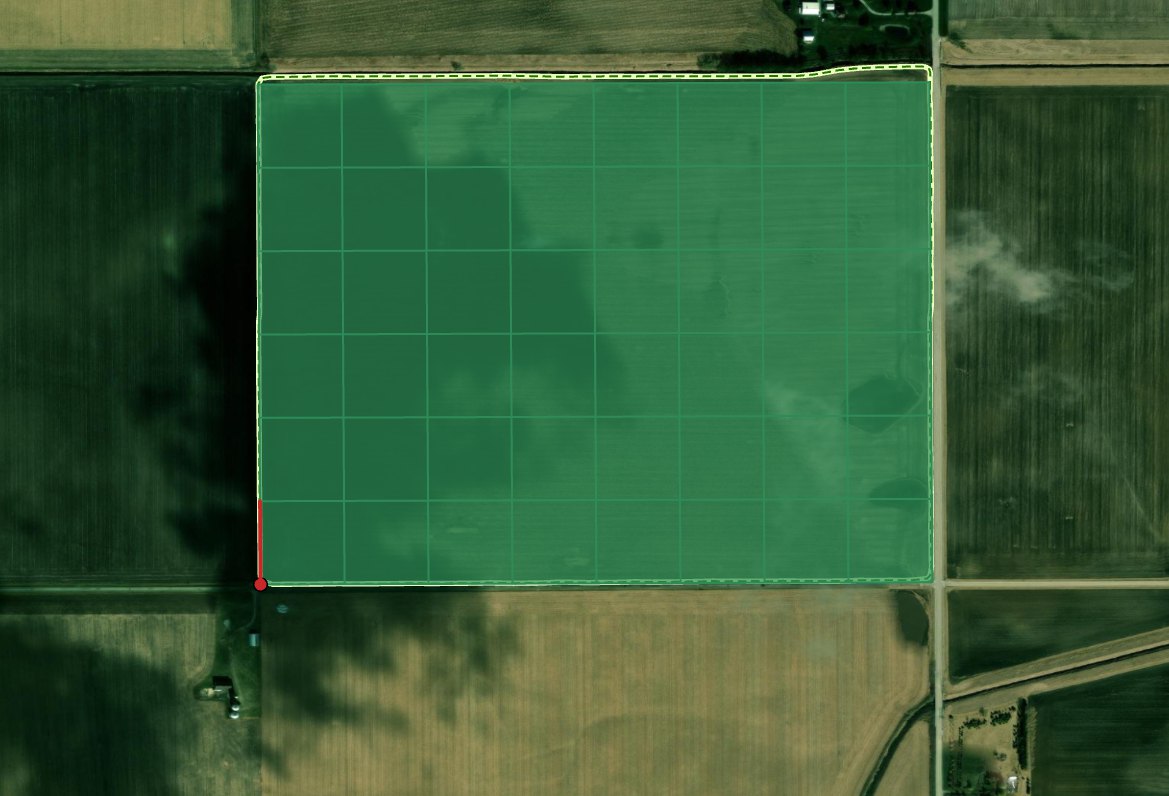
As the settings change, the preview draws the plots on the map as a temporary overlay. The red dot is the anchor and the red line is the drawn direction: the plots extend forward along it and to the right of it, so this anchor at the southwest corner fills the field. Nothing has been added to the map yet; the overlay disappears when the window closes.
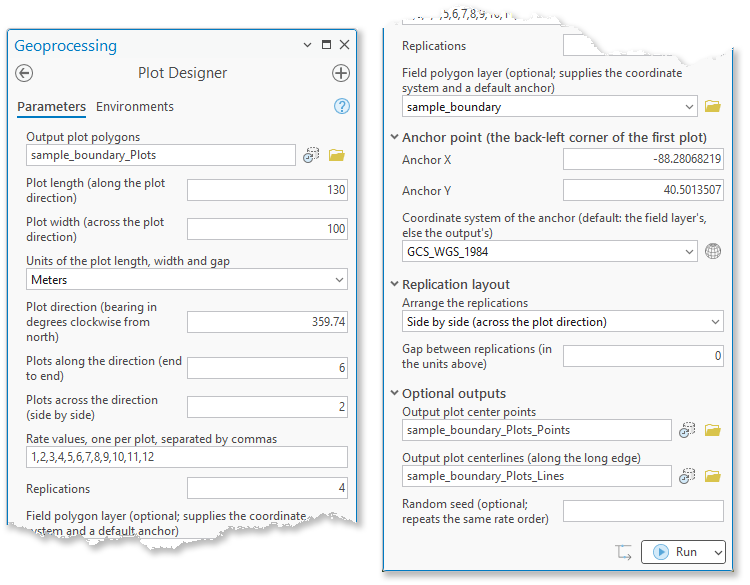
We could run the tool now with Create Plots. Instead, Open as Geoprocessing Tool opens the Plot Designer geoprocessing tool with the same settings filled in, including the anchor's coordinates and their coordinate system, ready to run, to save as a model, or to copy as Python.
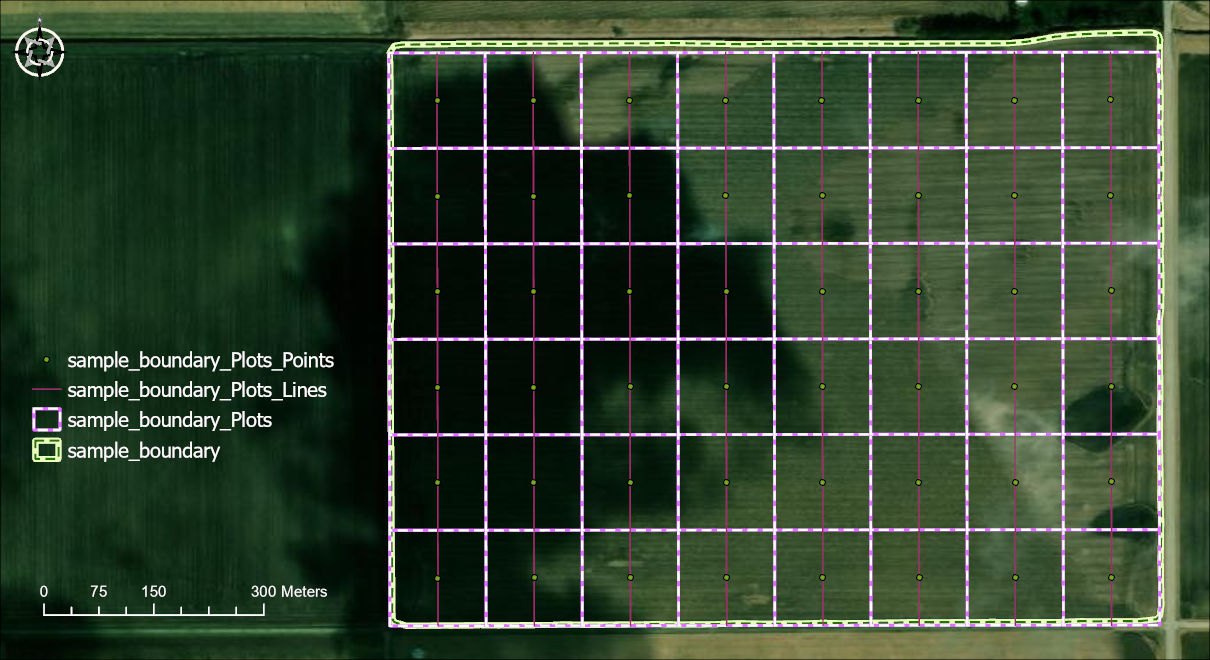
Either way, the run finishes with three new feature classes added to the map: the plot polygons, their center points and their centerlines. Each carries the replication and plot numbers, the plot ID and the rate.
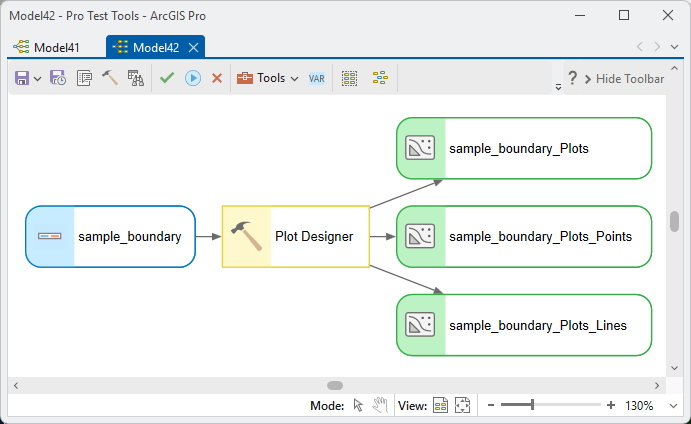
In ModelBuilder the tool takes the field layer in and gives the three feature classes out, so a plot layout can be part of a larger model.
The window and the outputs
The window. Each section has a light that turns green when it is complete; hover over a light to read why it is green or gray and what is still needed. Draw on the map activates a line tool: draw along the fenceline and its geodesic bearing fills the direction box; hold Ctrl as you finish to snap to the nearest 45 degrees. Click on the map places the anchor. The field layer list follows the map, and an anchor taken from the field's corner moves with the selection. Create Plots runs the geoprocessing tool and adds the result to the map; Open as Geoprocessing Tool opens the same tool in the Geoprocessing pane with every setting filled in, for ModelBuilder, batch runs or Python.
Outputs. The plot polygons carry Unique_ID, Rep (the replication, 1-based), Plot (1-based within its replication, counted along the direction first and then across), Plot_ID (R<rep>P<plot>), Rate, Center_X and Center_Y in the output coordinate system, Center_Lon and Center_Lat, Bearing, and Long_m and Short_m, the edge lengths in meters. The optional center points and centerlines carry the same fields; each centerline runs along its plot's long axis. Shapefile outputs work. The polygons feed Fuse Plots and Field, which builds the prescription map, and Add Random Numbers for any further random assignment.
Coordinate systems. The output takes the field layer's coordinate system, else the anchor's, unless the Output Coordinate System environment is set. A map or layer with an unknown coordinate system cannot be used: the tool needs real distances.
Parameters
| Label | Explanation | Data type |
|---|---|---|
| Output plot polygonsRequired · out_fc | The plot polygons, one per plot of every replication, with Rep, Plot, Plot_ID, Rate, center coordinates, bearing and edge lengths. A geodatabase feature class or a shapefile. | Feature Class |
| Plot length (along the plot direction)Required · long_edge | The long edge of each plot, in the units below. | Double |
| Plot width (across the plot direction)Required · short_edge | The short edge of each plot, in the units below. | Double |
| Units of the plot length, width and gapOptional · units | Meters, Feet, US survey feet, Yards, Kilometers or Miles. Distances are measured along the ground. | String |
| Plot directionRequired · bearing | The bearing of the plots' long edges in degrees clockwise from north: 0 is north, 90 is east. The window can draw it on the map. | Double |
| Plots along the directionRequired · n_long | How many plots end to end along the plot direction in each replication. | Long |
| Plots across the directionRequired · n_short | How many plots side by side across the plot direction in each replication. | Long |
| Rate valuesRequired · rates | The treatment values, exactly one per plot of a replication, separated by commas. Each replication gets them in a fresh random order. | String |
| ReplicationsRequired · n_reps | How many times the block is repeated. | Long |
| Field polygon layerOptional · field_layer | The field or fields the plots go in. Gives the output its coordinate system and, when no anchor is typed, the anchor: the lower-left corner of the layer's extent, or of its selection's extent when features are selected. | Feature Layer |
| Anchor X, Anchor YOptional · anchor_x, anchor_y | The anchor point, the back-left corner of the first plot. Give both or neither. | Double |
| Coordinate system of the anchorOptional · anchor_cs | The coordinate system the anchor X and Y are given in. Defaults to the field layer's, else the output's; the window passes the map's. | Coordinate System |
| Arrange the replicationsOptional · rep_layout | Side by side (across the plot direction): each replication sits to the right of the one before. End to end (along the plot direction): each replication continues forward along the direction. | String |
| Gap between replicationsOptional · rep_gap | Space between neighboring replications in the units above; 0 means touching. | Double |
| Output plot center pointsOptional · out_points | A point feature class of the plot centers with the same fields as the polygons. | Feature Class |
| Output plot centerlinesOptional · out_lines | A line feature class of each plot's centerline along its long axis, with the same fields as the polygons. | Feature Class |
| Random seedOptional · seed | Any whole number. The same seed with the same inputs repeats the same random order of rates. | Long |
Python
Four replications of a two-by-three block of 40 by 20 meter plots at a bearing of 30 degrees, anchored at a typed UTM corner, with the plot center points:
import arcpy
arcpy.ImportToolbox(r"C:\path\to\JennessEnterprisesTools.pyt")  # your install path
arcpy.jenness.PlotDesigner(
    out_fc=r"D:\data\trial.gdb\Plots_2026",
    long_edge=40, short_edge=20, units="Meters", bearing=30,
    n_long=2, n_short=3, rates="0, 50, 100, 150, 200, 250", n_reps=4,
    field_layer=r"D:\data\trial.gdb\Fields",
    anchor_x=441250.0, anchor_y=3895120.0,
    anchor_cs=arcpy.SpatialReference(26912),
    rep_layout="Side by side (across the plot direction)", rep_gap=5,
    out_points=r"D:\data\trial.gdb\Plots_2026_Points", seed=7)
Recommended citation
Credits and references
By Jeff Jenness and Matt Wiebers, Jenness Enterprises (www.jennessent.com). A port of the Plot Designer tool of the CropCentric ArcGIS tools for ArcMap (Jenness and Wiebers 2018), rebuilt for ArcGIS Pro with an anchored, geodesic-true layout in place of draggable graphics.
The basemap under the maps in the figures on this page is Esri's World Imagery basemap (source: Esri, Vantor, Earthstar Geographics, and the GIS User Community).
- Esri. 2026. World Imagery [basemap]. ArcGIS Online, Esri, Redlands, California. arcgis.com/home/item.html?id=10df2279f9684e4a9f6a7f08febac2a9. Accessed on 18 October 2026.
- Jenness, J., and M. Wiebers. 2018. CropCentric ArcGIS tools, version 2.2.455. Jenness Enterprises, Flagstaff, Arizona, USA.
Licensing information
Works at every ArcGIS Pro license level (Basic, Standard, Advanced). No extension licenses are required.
Related tools and pages
- Fuse Plots and Field — cuts these plots into the field polygons and builds the prescription map.
- Create Array along Axes — copies any selected graphic or feature along axes drawn on the map, for layouts the block cannot express.
- Add Random Numbers — deals treatment numbers to the plots at random, or fills any other numeric field.
- Repeating Shapes — regular tessellations over a whole area rather than a block of plots.
- Random Point Generator — random sample points within the field, with spacing and stratification options.
- Random Sample Array Generator — random arrays of sample points for cluster-style designs.
- Spatially Balanced Sample (GRTS) — sample sites spread evenly over the field, with replacements in order.