
Create Array along Axes
Summary
Copies a selected graphic, or a layer's selected features, along an axis — so many copies forward and so many backward — and optionally along a second axis to the right and to the left. Each step is the shape's own extent along that axis plus a separation distance, so the copies in a row never overlap and a separation of zero makes them touch. Rows stepped along a second axis stay clear of each other when the axes are perpendicular; the narrower the angle between the axes, the closer each row's copies come to the next row's, and at a small angle, 30 degrees say, they overlap. Widen the angle or add separation along the second axis to keep them apart. The copies can be clipped to selected polygons and come out as a feature class, as graphics added to the map, or both.
In the Create Array along Axes window the axes are drawn on the map, following visual cues such as a fenceline or a field edge, and a live preview shows the copies before anything is created. The window runs the Create Array along Axes geoprocessing tool, so the run is recorded in the geoprocessing History and can be repeated, and the tool can also be run on its own on a layer's selected features. Distances are measured along the ground, whatever the map's projection.
Create Array along Axes is a port of the Create Graphic Array tool of the CropCentric ArcGIS tools that Jeff Jenness built with Matt Wiebers for ArcMap (Jenness and Wiebers 2018), where it copied a selected graphic along one or two drawn axes.
Usage
The step. Along each axis the copies step by the source's extent along that axis plus the separation. A 40 meter wide plot with a 5 meter separation repeats every 45 meters; a point, having no extent, repeats every separation. Several selected features are copied together as one group, and the step uses the group's extent. The window shows the current step beside each axis.
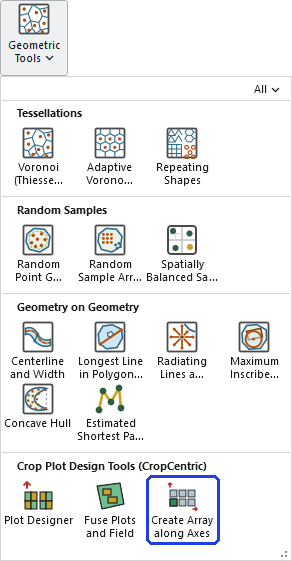
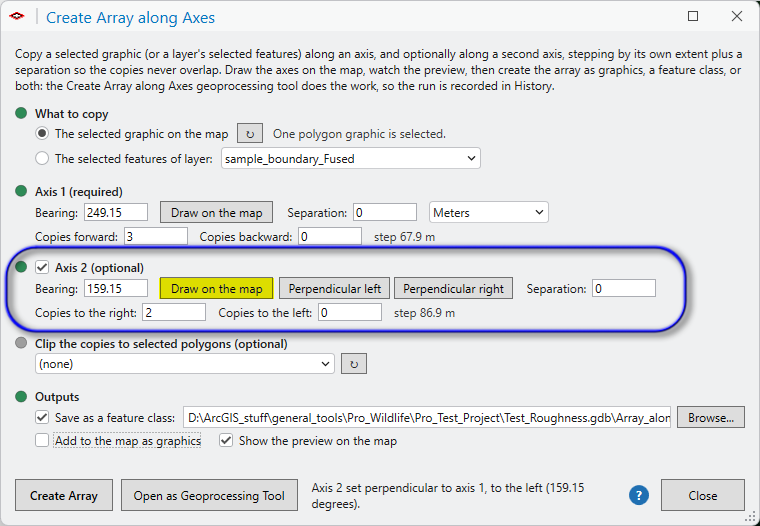
The axes. A bearing is measured in degrees clockwise from north; copies forward go that way and copies backward the opposite way. The second axis defaults to the first plus 90 degrees; copies to the right go along it and copies to the left the opposite way, and the whole first-axis row is repeated at each step. The original stays in place and is written too, with step numbers of zero.
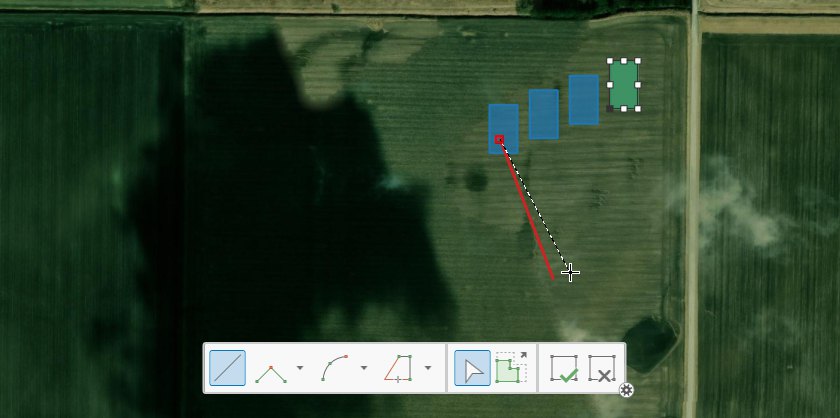
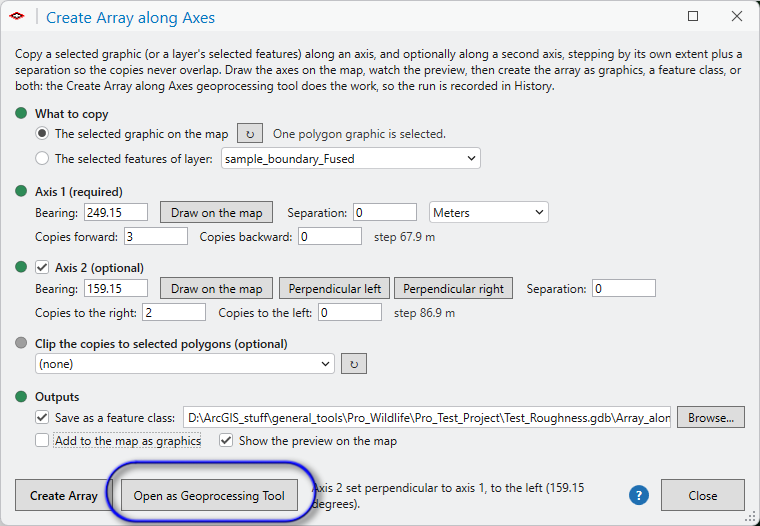
The window. The source is the one graphic selected on the map (a polygon, line or point drawn with ArcGIS Pro's graphics tools) or the selected features of a point, line or polygon layer. Each section has a light that turns green when it is complete. Draw on the map activates a line tool: draw the axis and its geodesic bearing fills the box. Hold Ctrl while you draw and a red line shows where the axis will snap, the nearest 45 degrees measured from north for the first axis and from the first axis for the second, as the CropCentric dialog did; release Ctrl and the line follows the cursor freely. For the second axis, Perpendicular left and Perpendicular right set it at 90 degrees to the first axis without drawing. The preview draws the copies on the map as a temporary overlay that follows every change and disappears when the window closes. Create Array runs the geoprocessing tool; Open as Geoprocessing Tool opens it in the Geoprocessing pane with every setting filled in.
Clipping. With a clip layer (its selection honored) every copy is cut to the selected polygons and copies lying entirely outside them are dropped. The window lists only polygon layers that have a selection.
Outputs. The feature class carries Array_ID, Axis_1_ID and Axis_2_ID (step numbers; negative backward and to the left), Source_FID (the input feature's ObjectID, or −1 for a graphic), Center_X, Center_Y, Center_Lon and Center_Lat, Area_Ha and Length_m for polygons or Length_m for lines, all geodesic, and empty Treatment and Block fields for Add Random Numbers to fill. Shapefile outputs work. With add to the map as graphics checked, the window adds the copies to the map's graphics layer with a hatched fill (polygons), a green line or a marker, where they can be moved and edited like the original graphic; the geoprocessing tool's own graphics option adds a graphics layer made from the output.
Geometry. The copies are made in an azimuthal equidistant projection centered on the source and projected to the output coordinate system (the input layer's, the graphic's map, or the Output Coordinate System environment). True-curve graphics such as circles are densified first.
A worked example
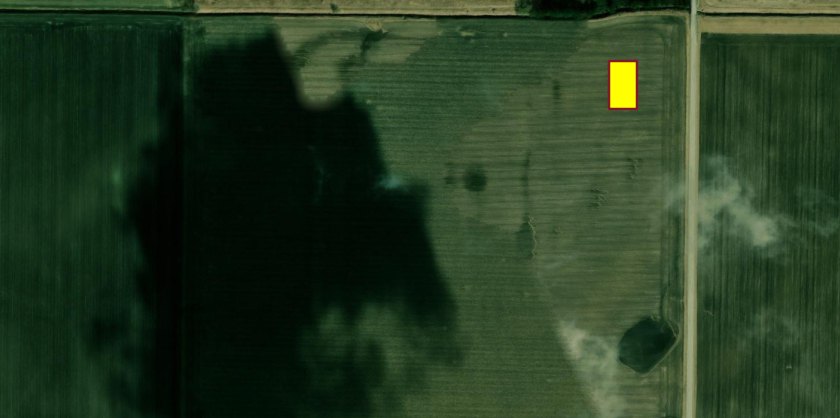
We have an initial graphic drawn on the map, a polygon representing the plot we want to replicate.
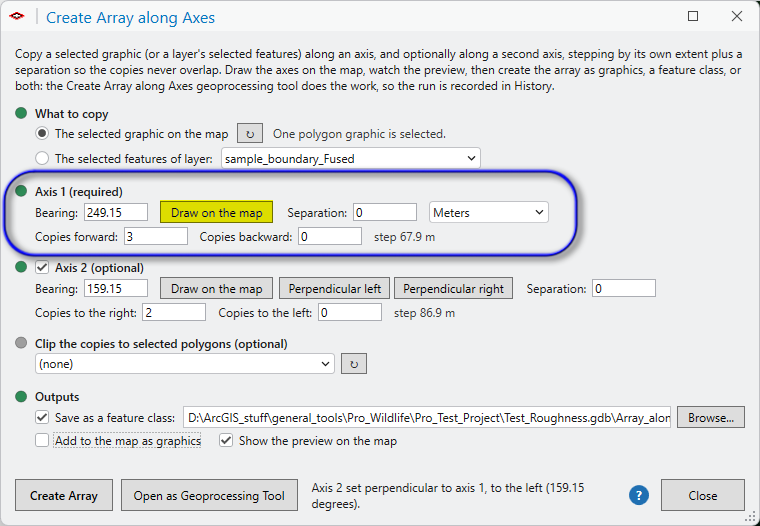
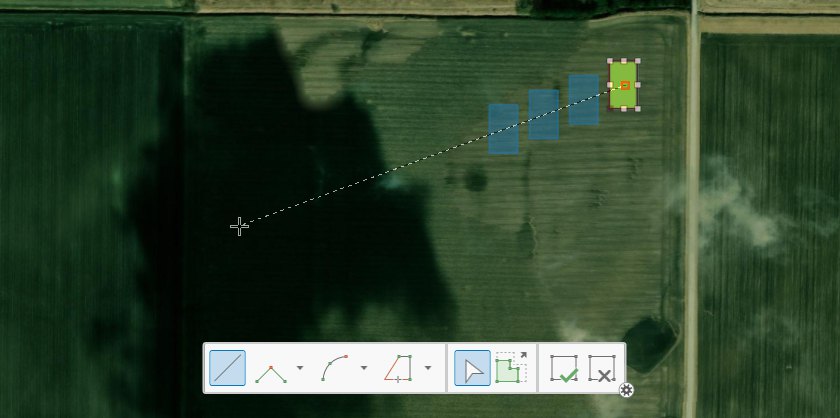
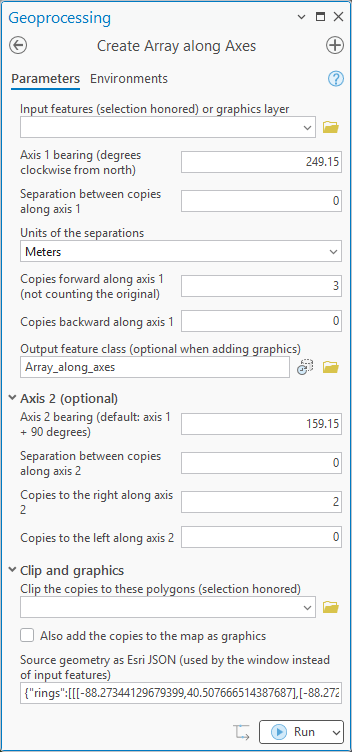
We draw our initial axis. In the window, Draw on the map in the Axis 1 section activates the line tool; on the map we drag the line out from the plot toward the southwest, and the bearing, 249.15 degrees, fills the box. The preview already shows the three copies forward along that axis.
We draw our secondary axis the same way from the Axis 2 section. Holding the Ctrl key while drawing shows the red bar on the map, the line snapped to the nearest 45 degrees from axis 1; here it lands at 159.15 degrees, perpendicular to the first axis, which the Perpendicular left button would also have set.
Back in the window, Open as Geoprocessing Tool opens the same settings in the Geoprocessing pane. There we can observe that the polygon, since it was a graphic, has to be delivered to the tool as the JSON object in the last parameter. Running the tool directly from the geoprocessing pane is normally best done from a polygon feature in a feature class rather than from a graphic.
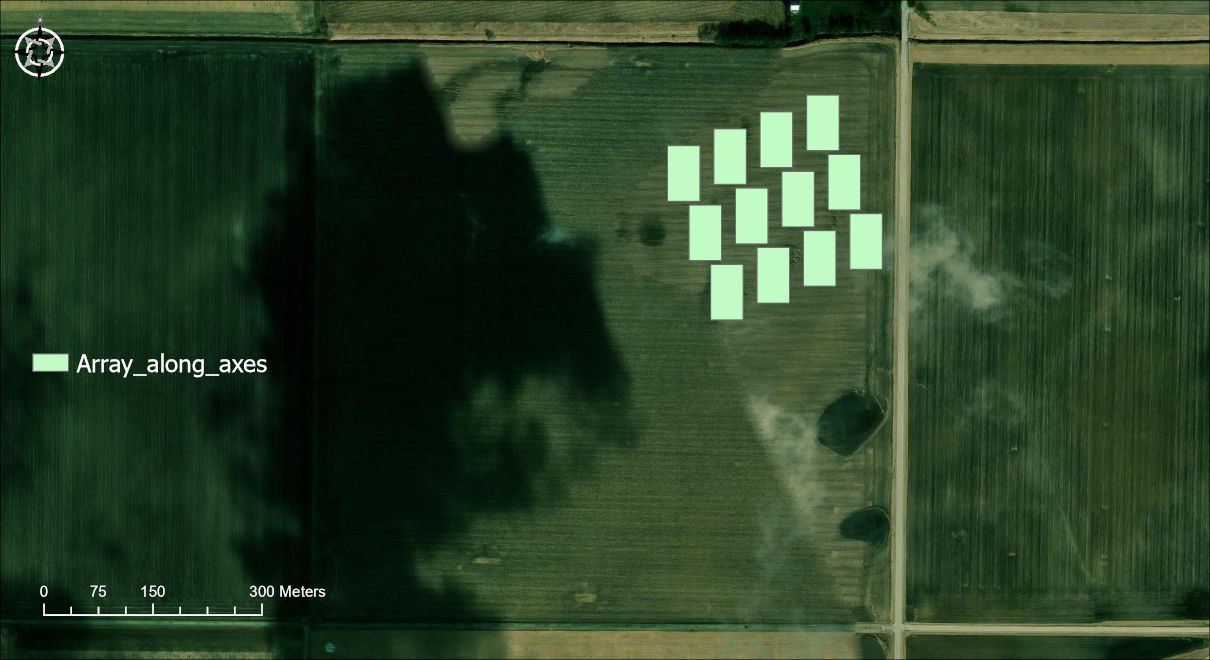
After running the tool, we have our array:
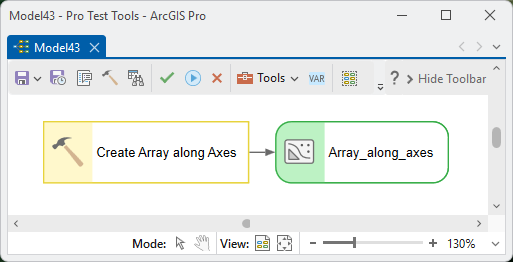
The tool in a model:
Parameters
| Label | Explanation | Data type |
|---|---|---|
| Input features or graphics layerOptional · in_features | The features to copy, together as one group: a feature layer (its selection honored), a feature class, or a graphics layer. Not needed when a source geometry is given. | Feature Layer |
| Axis 1 bearingRequired · bearing1 | Direction of the first axis in degrees clockwise from north. Copies forward go this way. | Double |
| Separation along axis 1Required · gap1 | Space between neighboring copies along axis 1, on top of the source's extent; 0 means touching. | Double |
| Units of the separationsOptional · units1 | Meters, Feet, US survey feet, Yards, Kilometers or Miles, for both separations. | String |
| Copies forward along axis 1Required · n_forward | How many copies in the direction of the first bearing, not counting the original. | Long |
| Copies backward along axis 1Required · n_back | How many copies the opposite way. | Long |
| Output feature classOptional · out_fc | Where to write the copies: a geodatabase feature class or a shapefile. May be left empty when the copies are added as graphics. | Feature Class |
| Axis 2 bearingOptional · bearing2 | Direction of the second axis; empty means perpendicular to the first. | Double |
| Separation along axis 2Optional · gap2 | Space between neighboring copies along the second axis. | Double |
| Copies to the right, to the leftOptional · n_right, n_left | How many copies of the whole first-axis row in the direction of the second bearing, and the opposite way. | Long |
| Clip the copies to these polygonsOptional · clip_features | Polygons to cut the copies to; copies entirely outside are dropped. A selection and a definition query are honored. | Feature Layer |
| Also add the copies to the map as graphicsOptional · to_graphics | Checked: a graphics layer of the copies is added to the active map as well. | Boolean |
| Source geometry as Esri JSONOptional · in_geometry | The window passes its selected graphic here. Scripts may pass any geometry's JSON (arcpy's Geometry.JSON) instead of input features. | String |
Python
A four-by-three array of one selected plot polygon: three copies east of it with 5 meter gaps, and the whole row copied twice to the south, clipped to the field:
import arcpy
arcpy.ImportToolbox(r"C:\path\to\JennessEnterprisesTools.pyt")  # your install path
arcpy.management.MakeFeatureLayer(r"D:\data\trial.gdb\Plots", "plot_lyr")
arcpy.management.SelectLayerByAttribute("plot_lyr", "NEW_SELECTION", "Plot_ID = 'R1P1'")
arcpy.jenness.CreateArrayAlongAxes(
    in_features="plot_lyr", bearing1=90, gap1=5, units1="Meters",
    n_forward=3, n_back=0, out_fc=r"D:\data\trial.gdb\Plot_array",
    bearing2=180, gap2=5, n_right=2, n_left=0,
    clip_features=r"D:\data\trial.gdb\Fields", to_graphics=False)
Recommended citation
Credits and references
By Jeff Jenness and Matt Wiebers, Jenness Enterprises (www.jennessent.com). A port of the Create Graphic Array tool of the CropCentric ArcGIS tools for ArcMap (Jenness and Wiebers 2018).
The basemap under the maps in the figures on this page is Esri's World Imagery basemap (source: Esri, Vantor, Earthstar Geographics, and the GIS User Community).
- Esri. 2026. World Imagery [basemap]. ArcGIS Online, Esri, Redlands, California. arcgis.com/home/item.html?id=10df2279f9684e4a9f6a7f08febac2a9. Accessed on 18 October 2026.
- Jenness, J., and M. Wiebers. 2018. CropCentric ArcGIS tools, version 2.2.455. Jenness Enterprises, Flagstaff, Arizona, USA.
Licensing information
Works at every ArcGIS Pro license level (Basic, Standard, Advanced). No extension licenses are required.
Related tools and pages
- Plot Designer — a replicated block of rectangular plots with randomized rates, when the layout is a regular block.
- Fuse Plots and Field — cuts the copies, saved as a feature class with a rate field, into the field polygons.
- Add Random Numbers — fills the Treatment and Block fields of the copies.
- Repeating Shapes — regular tessellations that fill an area rather than copies of one shape.
- Random Point Generator — random sample points within the field, with spacing and stratification options.
- Random Sample Array Generator — random arrays of sample points for cluster-style designs.
- Spatially Balanced Sample (GRTS) — sample sites spread evenly over the field, with replacements in order.