
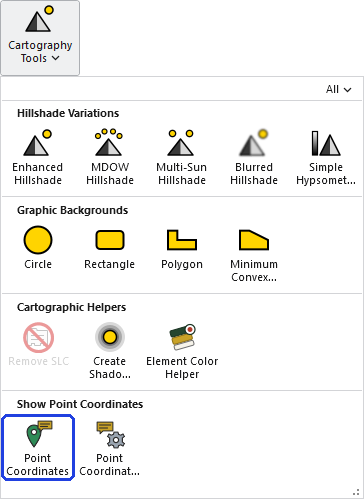
Point Coordinates
Summary
Point Coordinates is a click tool: click a map, or a map frame on a layout, and a callout graphic appears describing that point — its latitude and longitude with the name of the geographic coordinate system and, when the map is projected, its projected X and Y with the name of the projected coordinate system, the names in smaller text. On a map the graphic goes into the map's graphics layer. On a layout the tool finds the map frame under the click, describes the point in that frame's map, and puts the graphic into that map's graphics layer as well, so that when the frame is panned or zoomed the callout moves with the point it describes and the coordinates it reports stay true; where map frames overlap the topmost one is used, and a click outside every map frame adds nothing.
Point Coordinates Settings, beside it in the same row, chooses what the callout says and how it looks: the lines, their decimal places, the fonts of the coordinate lines and of the name lines, the callout style and colors, and the marker at the clicked point. The settings are saved for the user and the tool reads them at every click.
Point Coordinates is a port of the Add Coordinates tool of the CropCentric ArcGIS tools that Jeff Jenness built with Matt Wiebers for ArcMap (Jenness and Wiebers 2018), which wrote the latitude and longitude into a callout at the click; the coordinate system names, the projected coordinates, the layout behavior and the settings window are additions.
Usage
Clicking. Choose the tool and click. The callout's text sits a little up and to the right of the point with a leader back to it, and the tool stays active for the next click. Every graphic is named Point Coordinates, which makes them easy to find and remove in the Contents pane. The map or map frame must have a known coordinate system.
What it is good for. Some of its best uses are simply numbers you need somewhere else. Click the corners of the area you are interested in and the callouts give you its minimum and maximum latitude and longitude, ready to specify when downloading online data for that area. The same clicks give you the numbers for an analysis extent: type them into the Extent environment of any geoprocessing tool that honors it, and the tool works only within that box.
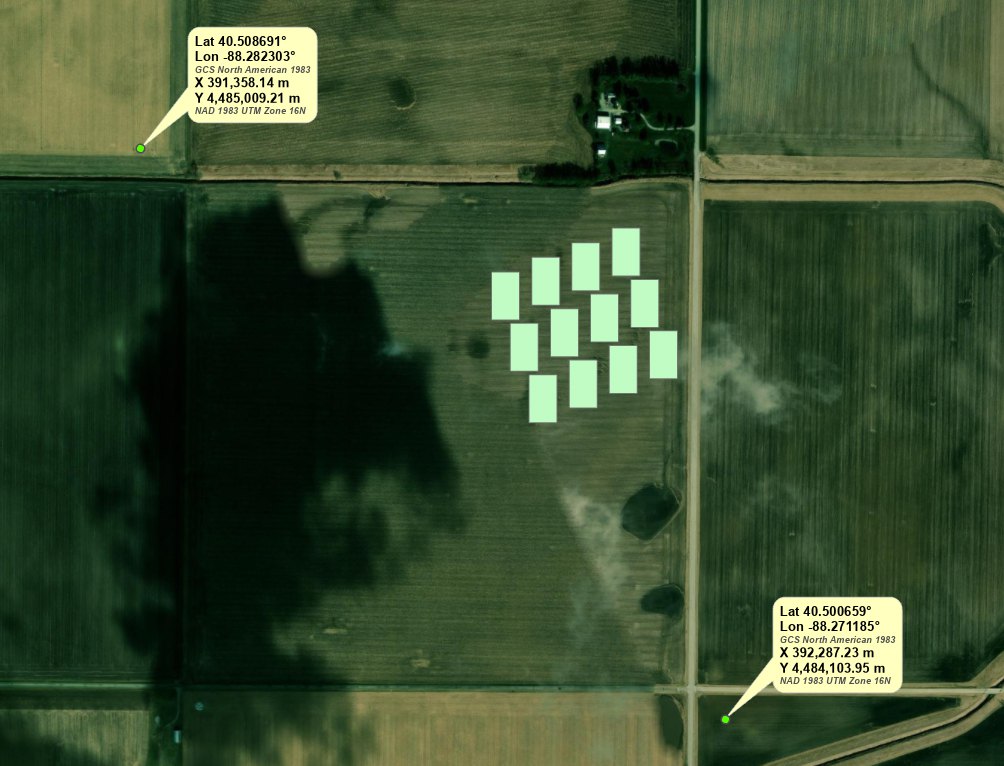
For example, we wanted to know the coordinates that would enclose the field we were working with. Two clicks, one just beyond the field's northwest corner and one just beyond its southeast corner, give the box: latitude 40.500659° to 40.508691° and longitude −88.282303° to −88.271185°, or in the map's own UTM coordinates X 391,358.14 to 392,287.23 m and Y 4,484,103.95 to 4,485,009.21 m. The array of rectangles in the field comes from the Create Array along Axes example.
On a layout. The click is tested against every map frame of the layout; the frame with the highest drawing order (meaning it draws on top) that contains the click wins, and the point is converted into that frame's map to be described. The graphic goes into that map's graphics layer rather than onto the page: pan or zoom the map frame and the callout travels with the point it describes, so its coordinates never go stale. One consequence: because the graphic belongs to the map, the layout's Select tool cannot pick it up. To move, restyle or delete it, open that map in a map view (or activate the map frame on the layout) and select it there, like any other element of a graphics layer. If you don't see the coordinates graphics on the map, check in the Contents pane that the graphics layer is set to be visible, with its visibility check box checked.
The lines. Latitude and longitude are always taken from the map's geographic coordinate system (the datum of a projected map). The projected X and Y carry the map's linear unit. Names are the coordinate systems' names with their underscores turned into spaces. Lines can be labeled (Lat, Lon, X, Y) or bare.
The text. The coordinate lines and the name lines each have their own font, size, style and color, written into the callout with ArcGIS Pro's text formatting tags, so the names can sit under the coordinates in smaller type. Edit the element afterwards like any text element.
The callout. The text sits in the callout style chosen in the settings: bare text, a simple leader line, a background box with a leader, or a rounded balloon whose tail points at the point. The marker at the point is a separate graphic, so either can be deleted or restyled on its own.
Recommended citation
Credits and references
By Jeff Jenness and Matt Wiebers, Jenness Enterprises (www.jennessent.com). A port of the Add Coordinates tool of the CropCentric ArcGIS tools for ArcMap (Jenness and Wiebers 2018).
The basemap under the maps in the figures on this page is Esri's World Imagery basemap (source: Esri, Vantor, Earthstar Geographics, and the GIS User Community).
- Esri. 2026. World Imagery [basemap]. ArcGIS Online, Esri, Redlands, California. arcgis.com/home/item.html?id=10df2279f9684e4a9f6a7f08febac2a9. Accessed on 18 October 2026.
- Jenness, J., and M. Wiebers. 2018. CropCentric ArcGIS tools, version 2.2.455. Jenness Enterprises, Flagstaff, Arizona, USA.
Licensing information
Works at every ArcGIS Pro license level (Basic, Standard, Advanced). No extension licenses are required.
Related tools and pages
- Point Coordinates Settings — what the callout says and how it looks.
- Element Color Helper — recolors the callout and marker graphics afterwards, along with any other selected elements.
- Add Graphics — the other map-and-layout placement tool of the Cartography group.
- Projecting rasters — background on projected and geographic coordinate systems.