
Point Coordinates Settings
Summary
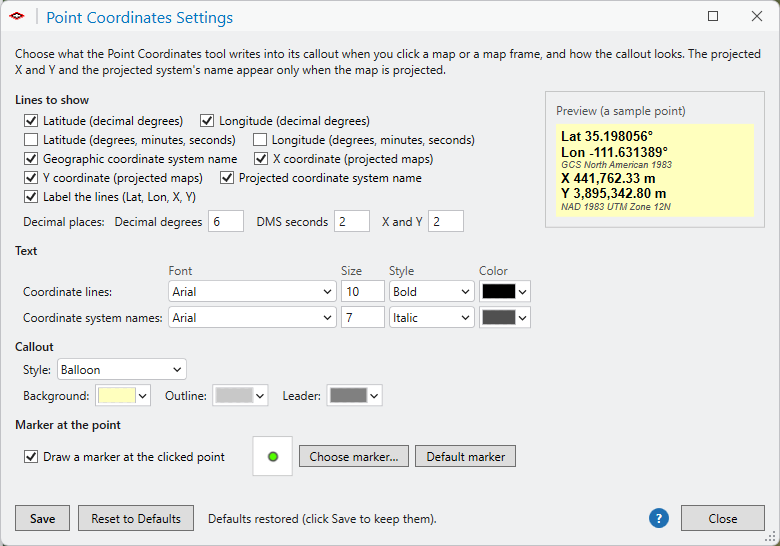
Chooses what the Point Coordinates tool writes into its callout when you click a map or a map frame, and how the callout looks: which lines appear (latitude and longitude in decimal degrees or in degrees, minutes and seconds, the geographic coordinate system's name, and for projected maps the X and Y and the projected system's name), the decimal places, the font, size, style and color of the coordinate lines and of the name lines separately, the callout style and its colors, and a marker at the clicked point. The settings are saved for the user, so they apply in every project, and the Point Coordinates tool reads them at every click.
Usage
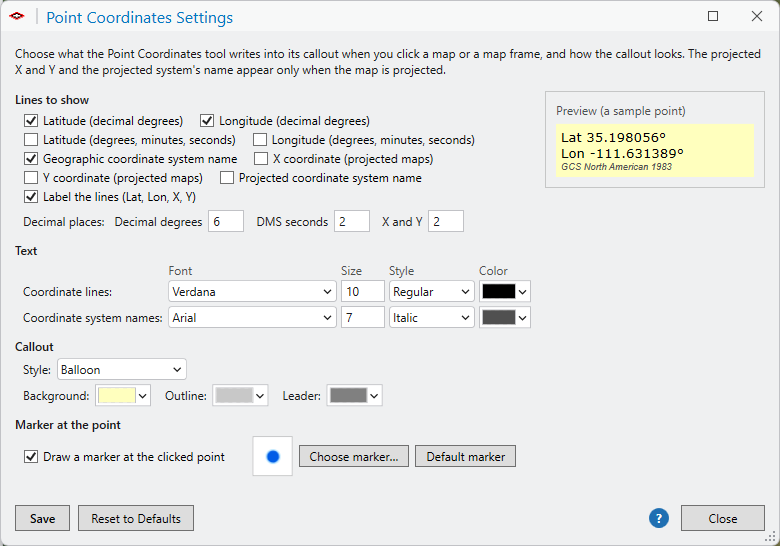
Lines to show. Any combination of latitude (decimal degrees), longitude (decimal degrees), latitude (degrees, minutes, seconds), longitude (degrees, minutes, seconds), the geographic coordinate system's name, the X coordinate, the Y coordinate and the projected coordinate system's name. Latitude and longitude always come from the map's geographic coordinate system, the datum of a projected map. The X and Y lines and the projected system's name appear only when the map is projected, however they are set here. Label the lines puts Lat, Lon, X and Y in front of the numbers; without it the lines are bare. The decimal places are set separately for the decimal degrees (Decimal degrees), for the seconds of the degrees-minutes-seconds lines (DMS seconds) and for X and Y.
Text. The coordinate lines and the coordinate-system names each have a font family, a size in points, a style (regular, bold, italic, bold italic) and a color, so the names can sit under the coordinates in smaller, lighter type. The tool writes these into the callout with ArcGIS Pro's text formatting tags, and the finished element can still be edited like any text element.
Callout. None writes bare text at the point. Simple line draws a leader from the text to the point. Background puts a box behind the text and draws the leader. Balloon puts the text in a rounded balloon whose tail points at the point. The background, outline and leader colors are set here.
Marker. With Draw a marker at the clicked point checked, the tool draws a marker at the point as its own graphic. The default is a small green circle with a thin gray outline, but the marker can be any ArcGIS Pro point symbol: Choose marker opens Pro's own Format Point Symbol editor, where the Gallery offers every point symbol in your styles and Properties sets the shape, color, size, outline, rotation and layers just as it does for any layer's symbology. The swatch beside the button shows the current marker, and Default marker brings back the green circle.
Preview, Save and Reset. The preview on the right shows the lines for a sample point in the current styles. Save keeps the settings; Reset to Defaults restores the shipped settings until you save them. The settings live in a small file in the user's local application data folder, under JennessEnterprises, so they travel with the user rather than with any one project.
A worked example
Here is the factory default settings window. Every line is on, the coordinates are in bold Arial over italic system names, the callout is a pale yellow balloon, and the marker is the small green circle; the preview on the right shows the callout for a sample point.
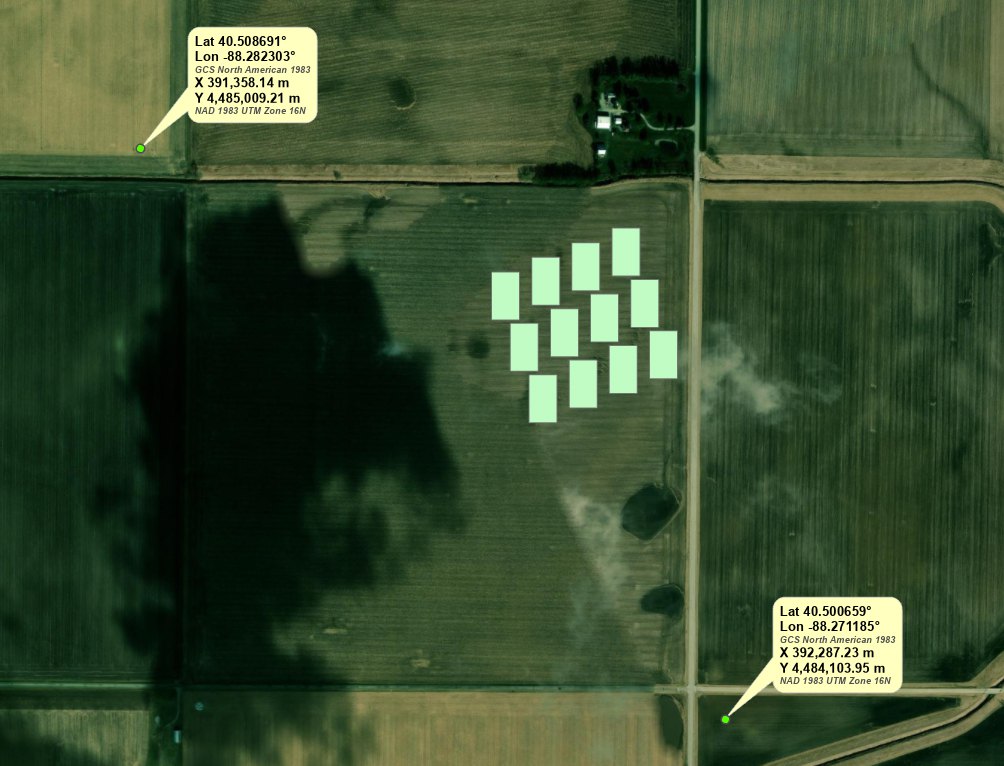
These settings give callouts like these, with latitude and longitude, the geographic system's name, the projected X and Y and the projected system's name:
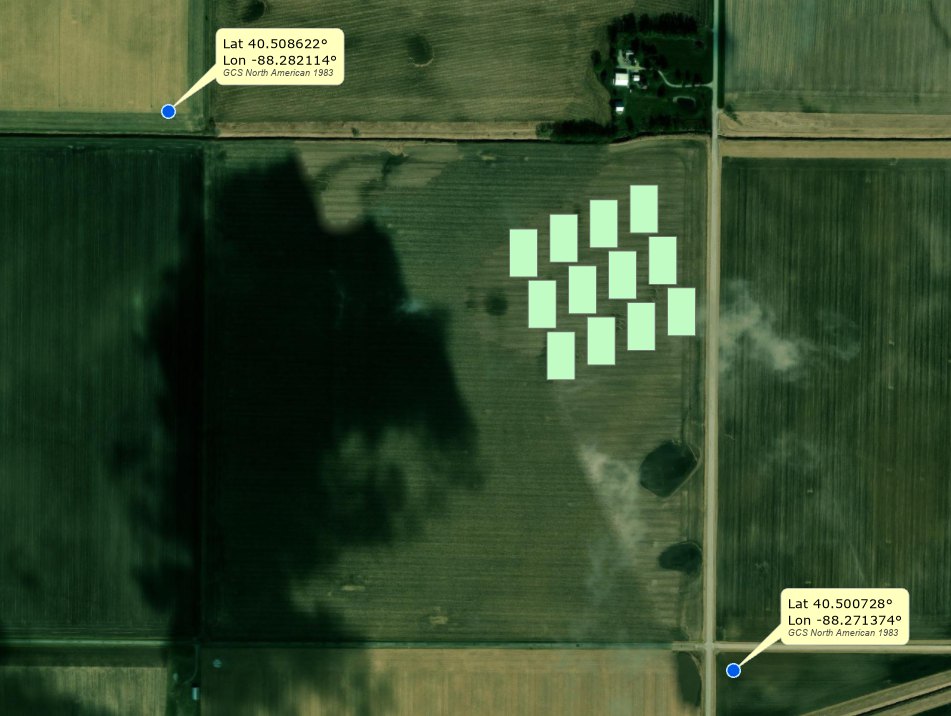
We can change what is shown. Here the X and Y lines and the projected system's name are turned off, the coordinate lines are in regular Verdana, and the marker is a blue circle chosen with Choose marker:
which gives us this:
Recommended citation
Credits and references
By Jeff Jenness and Matt Wiebers, Jenness Enterprises (www.jennessent.com). The companion of the Point Coordinates tool, itself a port of the Add Coordinates tool of the CropCentric ArcGIS tools for ArcMap (Jenness and Wiebers 2018), which had no settings of its own.
The basemap under the maps in the figures on this page is Esri's World Imagery basemap (source: Esri, Vantor, Earthstar Geographics, and the GIS User Community).
- Esri. 2026. World Imagery [basemap]. ArcGIS Online, Esri, Redlands, California. arcgis.com/home/item.html?id=10df2279f9684e4a9f6a7f08febac2a9. Accessed on 18 October 2026.
- Jenness, J., and M. Wiebers. 2018. CropCentric ArcGIS tools, version 2.2.455. Jenness Enterprises, Flagstaff, Arizona, USA.
Licensing information
Works at every ArcGIS Pro license level (Basic, Standard, Advanced). No extension licenses are required.
Related tools and pages
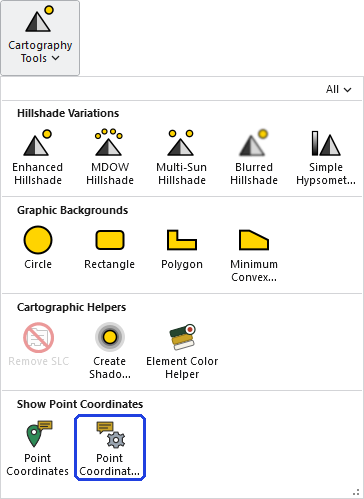
- Point Coordinates — the click tool these settings control.
- Element Color Helper — recolors callouts already placed, along with any other selected elements.
- Polar Plots — the other tool whose window sets fonts this way.