
Element Color Helper
Summary
Changes the colors of the selected layout or map elements all at once. Select a legend, a scale bar, a north arrow, a block of text, a drawn polygon, any mix of them, and the window lists every color found in them by what it is used for. Check the rows to change, pick a new color, and apply. A dark map with a black legend, scale bar and north arrow becomes a dark map with white ones in a few clicks, and every color keeps whatever transparency it had.
I have great respect for the sophisticated options Esri provides for designing and symbolizing these elements. You can really express your artistic side with all the options available, and we have Esri to thank for that. But I have had many times where all I wanted to do was change all the colors to something with more contrast against the background, and it can be really tedious traversing all the Element panes and options trying to find each color parameter to change. This tool is for those times.
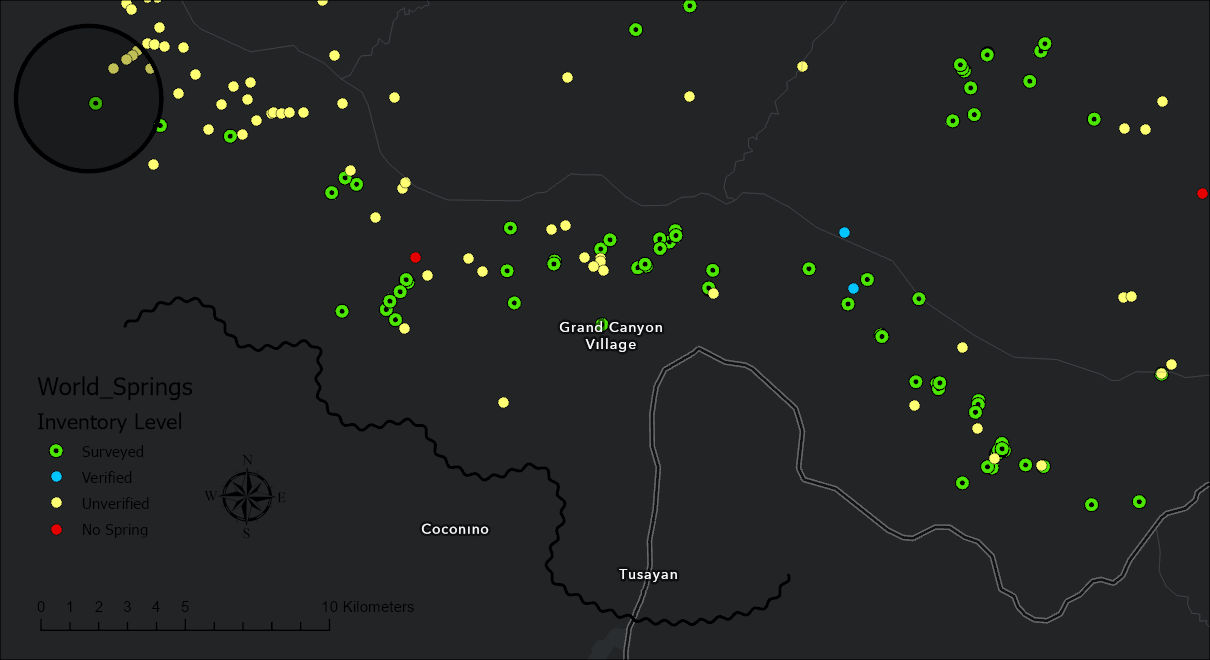
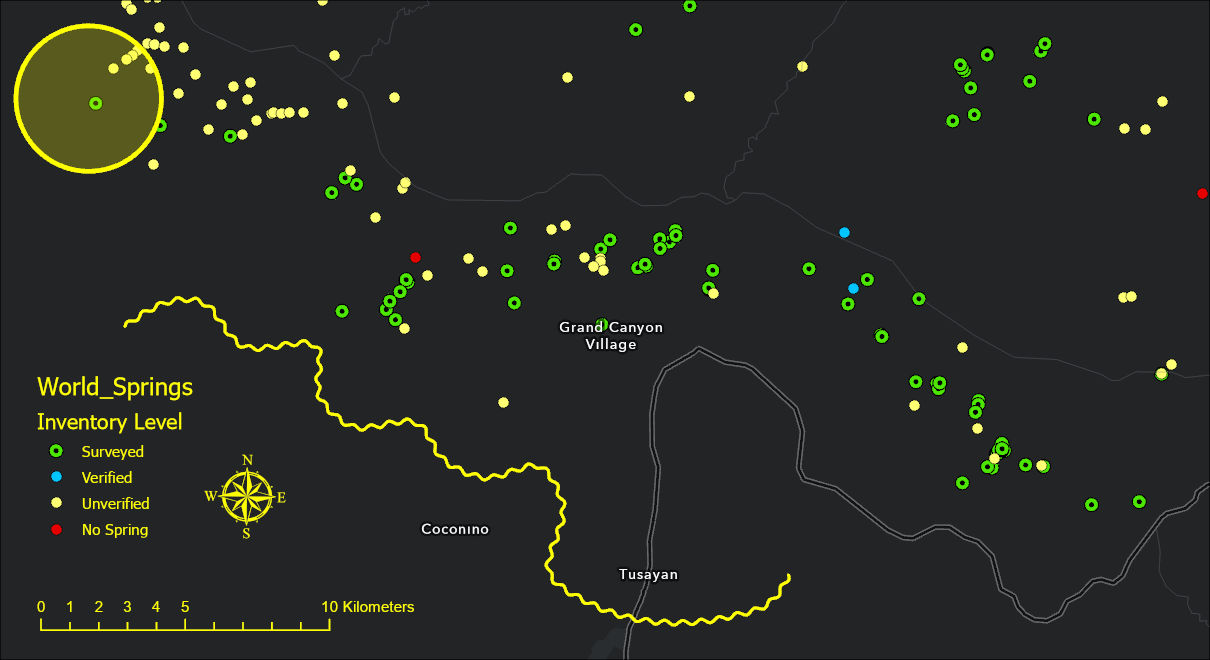
How it works
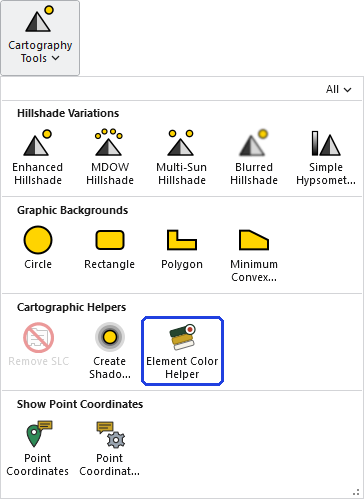
Select the elements on the layout, or the graphics in a map's graphics layer, and click Element Color Helper in the Cartographic Helpers row of the Cartography gallery. The window opens beside the layout and follows the selection: change the selection and the table changes with it. A selected group is treated as its members.
The window reads the definition of each selected element and lists every color it finds, one row for each color and what it is used for. Black used for text, for lines and for fills is three rows, so each can be given a different new color, or left alone.
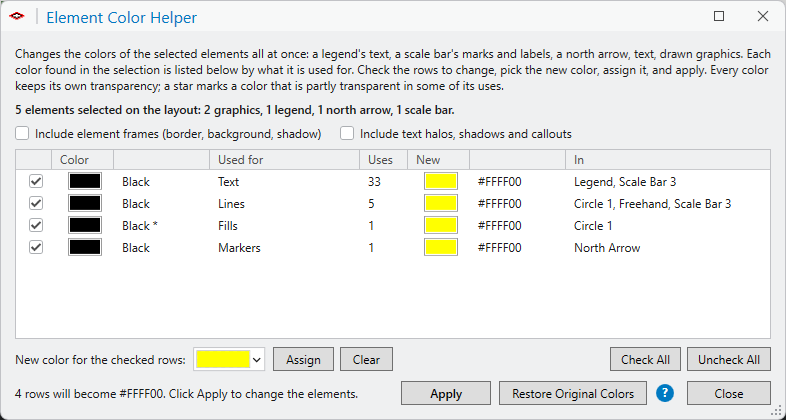
| Column | Meaning |
|---|---|
| Check box | Check the rows that should get the new color. Check All and Uncheck All do all the rows at once. |
| Color | A swatch and a name: Black, White, Gray 50%, or the hexadecimal code of any other color. A star after the name means the color is partly transparent in some of its uses. |
| Used for | Text: the letters of text, labels, legend entries and scale bar numbers. Lines: a scale bar's line and division marks, the outlines of drawn graphics. Fills: the fills of drawn graphics, the bars of a scale bar, the colors of a gradient. Markers: the glyph of an Esri north arrow, point markers. Two more appear only when their boxes are checked: Halos, shadows, callouts and Element frames. |
| Uses | How many colors in the selection this row stands for. |
| New | The color the row will become when Apply is clicked. Empty for a row that is left alone. |
| In | The names of the elements the color was found in. |
Then:
- Check the rows to change.
- Pick the new color with the color picker next to New color for the checked rows, and click Assign. The New column shows it. Clear takes it away again.
- Repeat for other rows that should get a different color.
- Click Apply. Every element in the selection gets its new colors, and the table is read again from the changed elements.
Restore Original Colors puts every element the window has changed back the way it was before the window first changed it, however many times Apply has been clicked since. The window keeps each element's original definition for as long as it is open. ArcGIS Pro's own Undo works as well: each click of Undo puts back one element.
Why one row for each use
A double-fill scale bar alternates black and white bars. If every color in it were simply set to white, the bars would vanish into each other. With a row for each color and use, the black rows can be set to white and the white row left alone, and the bar still alternates, now in white and white-on-dark. The same goes for a white halo around black text: once the text is white, the halo wants to be dark, not white. The halos sit in their own rows, shown only when Include text halos, shadows and callouts is checked, so they can be given their own color or left as they are.
Transparency
Each color keeps its own transparency. A line drawn at 60 percent opacity stays at 60 percent opacity in its new color, and an opaque fill stays opaque. The transparency of the color picked in the color picker is not used.
What is left alone
- Pictures. A picture has no colors to change. That includes picture elements, and the north arrows and graphics placed by this add-in's own North Arrows and Add Graphics tools, which are pictures. A north arrow from Esri's own gallery is a font glyph, and it is recolored.
- Legend patches. A legend's definition holds only its text: the title, layer names, headings and labels. The patches come from the map's layers and are never touched.
- Element frames, the border, background and shadow of an element, unless Include element frames is checked. With it unchecked, a white background box behind a legend stays white when the legend's text turns white.
- Text halos, shadows and callout backgrounds, unless Include text halos, shadows and callouts is checked.
- Color-locked symbol layers, the layers whose color is locked in Pro's symbol editor, and layers that are switched off.
Recommended citation
Credits and references
By Jeff Jenness, Jenness Enterprises (www.jennessent.com).
The basemap under the maps in the figures on this page is Esri's Dark Gray Canvas basemap (sources: Esri, TomTom, Garmin, FAO, NOAA, USGS, © OpenStreetMap contributors, and the GIS User Community).
- Esri. 2026. Dark Gray Canvas [basemap]. ArcGIS Online, Esri, Redlands, California. arcgis.com/home/item.html?id=7742cd5abef8497288dc81426266df9b. Accessed on 18 October 2026.
Licensing information
Works at every ArcGIS Pro license level (Basic, Standard, Advanced). No extension licenses are required.
Related tools and pages
- Rectangle Background — a background behind a scale bar or legend, the other way to rescue one from a busy map.
- Circle Background — a circle behind a north arrow or compass rose.
- North Arrows and Add Graphics — this add-in's own north arrows and graphics, which are pictures and keep their colors.