
Add Graphics
Summary
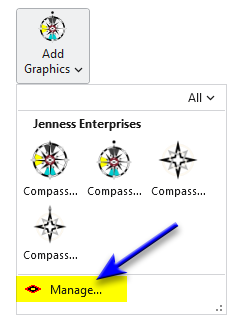
Adds a picture to a map or a layout as a single graphic: a compass rose, a logo, an agency seal. The picture is chosen from a gallery on the ribbon. The gallery holds four compass designs that come with the add-in, and any images of your own that you have registered. Choose one, draw a box where it should go, and it is there.
The compass graphics in the gallery are simply ones I made for myself. I add them to maps and layouts a lot, so I wanted an easy way to do it. Anyone is certainly welcome to use them. Many people, though, will probably want to create and register their own images, ones that brand a map with their own cartographic signature.
Usage
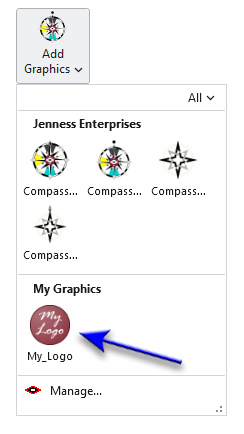
On the ribbon, Add Graphics is a button over a gallery, in the Cartography group.
- Click the arrow under Add Graphics to open the gallery, and click the graphic you want.
- Draw a box on the map or the layout where the graphic should go. The graphic is fitted inside the box, centered, and it keeps its own proportions, so the box does not have to be the right shape.
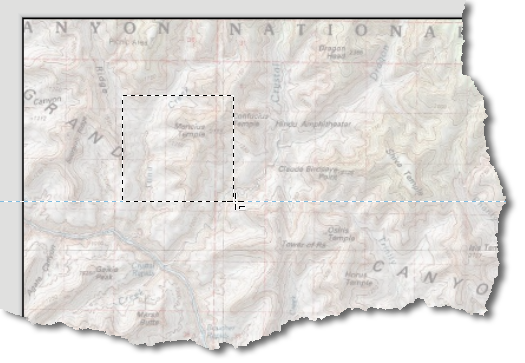
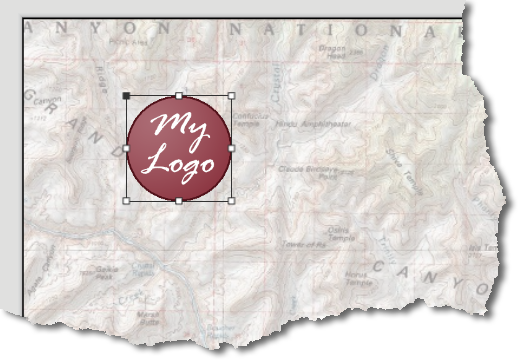
A click works too. Click once, without dragging, and the graphic is placed at a default size, centered on the click. The default size is one fifteenth of the longer side of the page on a layout, and one fifteenth of the longer side of the view on a map.
On a layout, the new graphic is left selected, so it can be moved or resized straight away. On a map, the graphic goes into the map's graphics layer. If the map does not have a graphics layer yet, the tool makes one.
The button itself repeats the last choice. Click Add Graphics, without opening the gallery, to place the same graphic again. The choice is remembered from one session to the next. Until a graphic has been chosen, the button places Compass graphic 1 - dot.
The graphics that come with the add-in
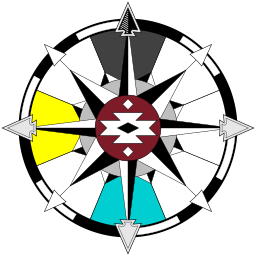
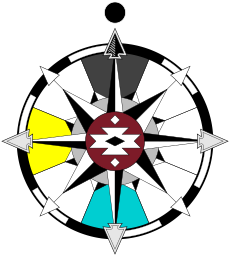
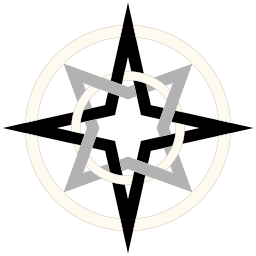
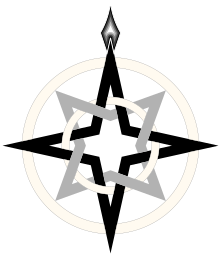
Compass graphic 1 is the Jennessent compass rose. Compass graphic 2 is a plainer design: a black star for the cardinal directions over a gray star for the intercardinal directions, inside two rings. Each has a second version with a mark above the north point: a dot on the first, a spearhead on the second.
Your own graphics
Any image of your own can be added to the gallery. Click Manage... at the foot of the gallery to open the Manage Custom Graphics and North Arrows window, click Add Image... there, and browse to the image. PNG, JPEG, BMP, GIF, TIFF, SVG and EMF files can be registered. Use an image type that can hold a transparent background (PNG, GIF, TIFF, SVG or EMF) if the logo should show nothing around it: a JPEG arrives with its background rectangle (see Transparent backgrounds). The image then has a thumbnail in the gallery, in every project, until you remove it.
Graphics and north arrows
A graphic placed with this tool is a picture. It does not turn when the map is rotated. For a compass or an arrow that keeps pointing north, use North Arrows, which places the same artwork as a north arrow on a layout.
Focal points
Every graphic placed with this tool carries a focal point: the spot that counts as its center. The current version of this add-in only has one tool that uses this focal point, so it only matters if you plan to use the Circle Background tool and you want a circle centered on that focal point. The Circle Background tool draws a circle behind a selected graphic, and it can center the circle on the focal point instead of on the middle of the graphic. The compass designs that come with the add-in have their focal points on the hub of the compass. A registered image has its focal point in the middle until it is moved in the Manage Custom Graphics and North Arrows window.
Recommended citation
Credits and references
By Jeff Jenness, Jenness Enterprises (www.jennessent.com).
The basemap under the maps in the figures on this page is Esri's USA Topo Maps basemap (copyright © 2013 National Geographic Society, i-cubed).
- Esri. 2026. USA Topo Maps [basemap]. ArcGIS Online, Esri, Redlands, California. arcgis.com/home/item.html?id=99cd5fbd98934028802b4f797c4b1732. Accessed on 18 October 2026.
Licensing information
Works at every ArcGIS Pro license level (Basic, Standard, Advanced). No extension licenses are required.
Related tools and pages
- North Arrows — the same artwork as a north arrow that turns with the map.
- Manage Custom Graphics and North Arrows — register your own images and set their focal points.
- Circle Background — a circle behind a graphic, centered on its focal point if you choose.
- Rectangle Background, Polygon Background and Minimum Convex Polygon Background — other backgrounds for a graphic on a busy map.