
Circle Background
Summary
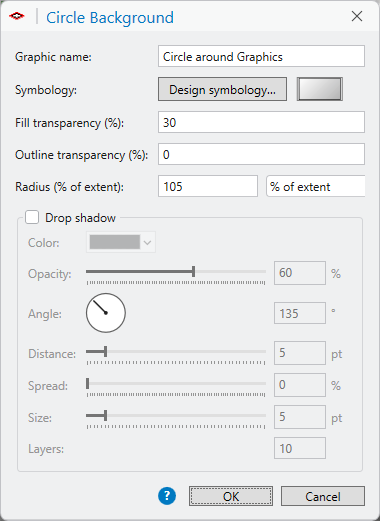
Draws a circle behind the selected graphic or layout elements, then groups the circle and the selection together with the circle underneath. A circle is the natural backdrop for a compass rose, a north arrow, a logo or any other round element that needs to stand clear of a busy map. The dialog sets the circle's symbol, the transparency of its fill and outline separately, and its size.
How it works
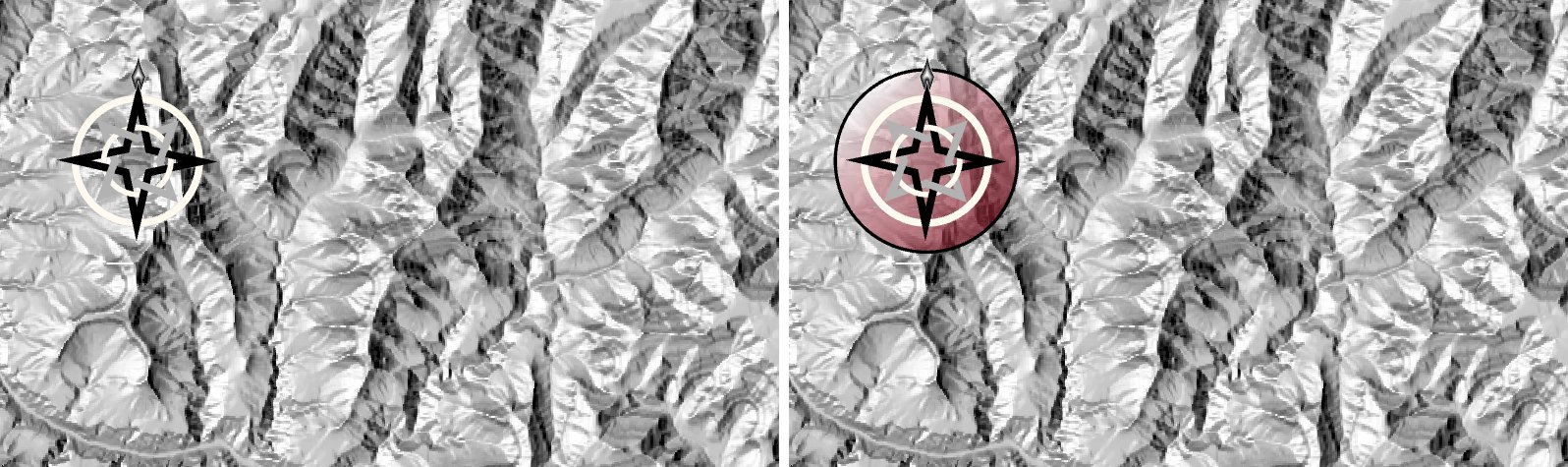
The tool centers a circle on the selection, sizes it to the selected objects as they are drawn, draws it with the chosen symbol, and groups it behind the selection. The center is the middle of the rectangle that bounds everything selected (the selection's extent), unless the focal-point option described below is used.
The size is set in one of two ways. As a percent, 100% gives the smallest circle about that center that contains the selected objects themselves. The circle is fitted to the objects, not to their bounding rectangle: around a rectangle it passes through the four corners, and around a compass rose or a north arrow it touches the outermost points. Symbol widths are included, so a thick outline stays inside the circle. Elements that have no outline of their own to follow (text, legends, pictures, map frames) are fitted by their drawn bounds. In a linear unit, the value is a margin added beyond the 100% circle, so 0 is that circle itself, 2 millimeters is a circle 2 millimeters larger all round, and a negative margin draws a smaller circle than the full object, so parts of the object stick outside. This might add an interesting aesthetic quality to north arrows that are generally round, but with the North marker extended out a bit as in the illustration above.
Rotated north arrows may take a little trial and error. ArcGIS Pro does not report the outline of a north arrow, only the upright box that bounds it, so the tool fits the circle to the four points where a compass design meets that box. On an unrotated arrow those are the tips of its north, south, east and west points, and the fit is exact. When the map is rotated, the north arrow turns with it, and the box becomes the upright box around the turned arrow. The tips no longer sit at the middle of its sides, the box is larger than the arrow, and the circle comes out somewhat loose. Try a margin, look at the result, and adjust: a small negative margin usually brings the circle back in to the arrow. If the first try is not right, undo it and run the tool again, or resize the circle by hand as described under What you get.
What to select first
The tool works on selected elements: graphics in a map's graphics layer, or elements on a layout (text, pictures, legends, north arrows, scale bars, map frames and so on). It does not work on features in a dataset. Select one element or several, then click the tool. If nothing is selected, the tool says so and stops.
- On a map, the selected graphics must all be in one graphics layer. A selection that spans two graphics layers is turned away with a message.
- If a selected element already belongs to a group, the whole group comes along. The tool never pulls a group apart.
A tour of the dialog
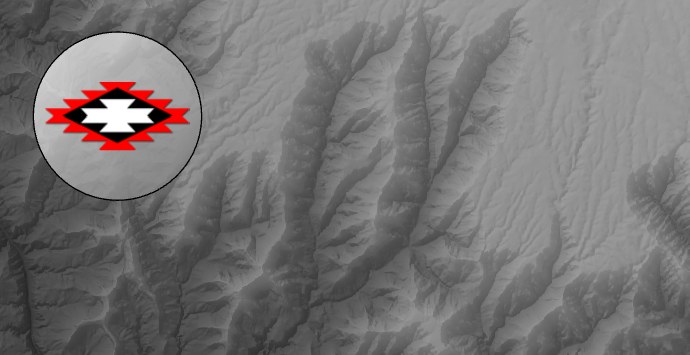
I want my logo on a map, and it looks like this:
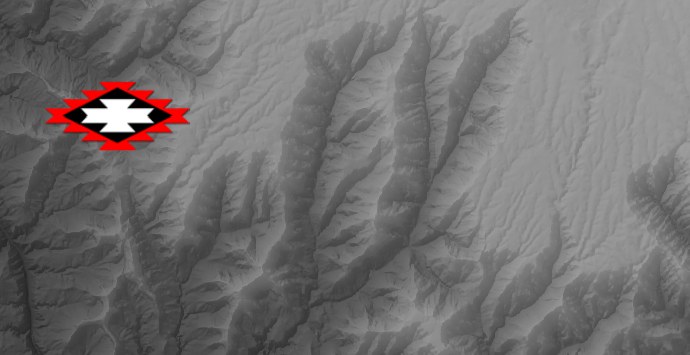
I use the tool as set up here, with a radius of 105%:
And now it looks like this:
| Control | Explanation |
|---|---|
| Graphic name | Optional. The name given to the new circle. On a layout it is the name shown in the Contents pane; on a map, graphics are not listed there, and the name shows in the Element pane when the graphic is selected. The new group is named after it, with “Group” added. Left blank, the circle gets ArcGIS Pro's default name and the group is named Graphic Circle Group. |
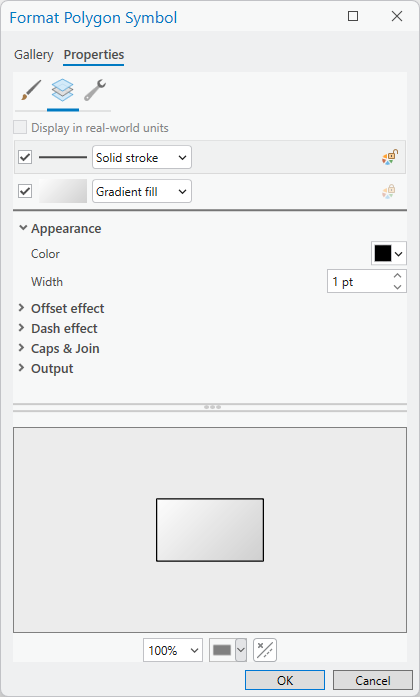
| Symbology / Design symbology… | Opens ArcGIS Pro's own Format Polygon
Symbol editor, gallery included, so the background can
carry any polygon symbol: a solid fill, a gradient, a
hatch, any outline. The swatch beside the button previews
the chosen symbol before transparency is applied. The
starting symbol is a pale yellow fill.
|
| Fill transparency (%) | 0 to 100. Applies to the interior fill only. Gradient fills are made transparent evenly across the whole gradient. |
| Outline transparency (%) | 0 to 100. Applies to the outline only, so a see-through fill can keep a solid border, or the reverse. |
| Radius, and its units | With % of extent, the radius as a percentage of the containing circle described above (100 by default). With a linear unit, the margin added beyond that circle; the label changes to say so, and a negative margin makes a smaller circle. On a layout the choices are millimeters, centimeters, inches and points. On a map the only linear choice is the unit of the map's coordinate system. |
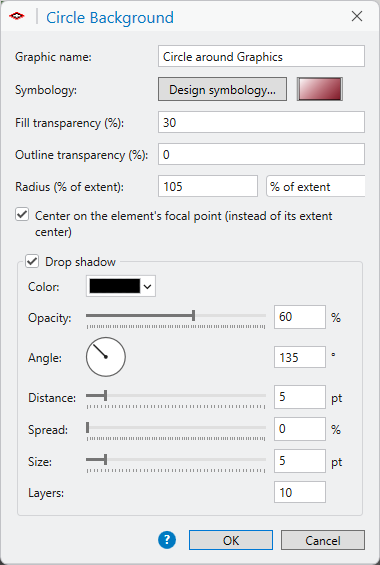
| Center on the element's focal point (instead of its extent center) | Shown only when a single element is selected and that element carries a focal point. When checked, the circle is centered on the focal point (the hub of the compass) and not on the center of the element's extent, which can sit off to one side when the compass has a long north point or lettering. With two or more elements selected the box is not offered, even if they carry focal points, and the circle is centered on the extent of the whole selection. See Focal points below. |
Click OK and the circle is drawn. Cancel closes the dialog and changes nothing.
Focal points
A focal point is the spot on a graphic that counts as its center. On a compass rose or a north arrow it is the hub where the points meet. That is often not the middle of the picture: a long north point, or an “N” above it, pushes the middle of the element's extent away from the hub. A circle centered on the extent then looks off center behind the compass, and a circle centered on the focal point looks right.
The add-in's own compass graphics and north arrows all carry a focal point. It is stored with the element as a position relative to the element's own width and height, so it stays on the hub when the element is moved or resized.
Your own images can have focal points too. The Manage Custom Graphics and North Arrows window registers your own images so they appear in the add-in's galleries, and it is where each image's focal point is set: click the hub on a preview of the image, or type the position. Every graphic placed from that image then carries the focal point, and this tool offers to center on it. The same window can change a focal point later, and can apply the change to a graphic that is already on the map or layout.
ArcGIS Pro's own Element pane does not show the focal point. For a graphic whose hub is at its center, set the element's anchor to the center point on the Element pane's Placement tab and the X and Y shown there are the focal point.
Drop shadow
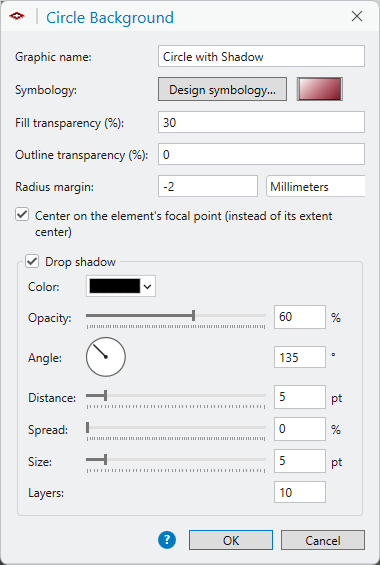
Check Drop shadow and the tool draws a soft shadow beneath the circle, the kind that makes a panel look as if it is floating a little above the map. The controls follow the drop shadow settings in Adobe Photoshop, so they will be familiar if you have used those.
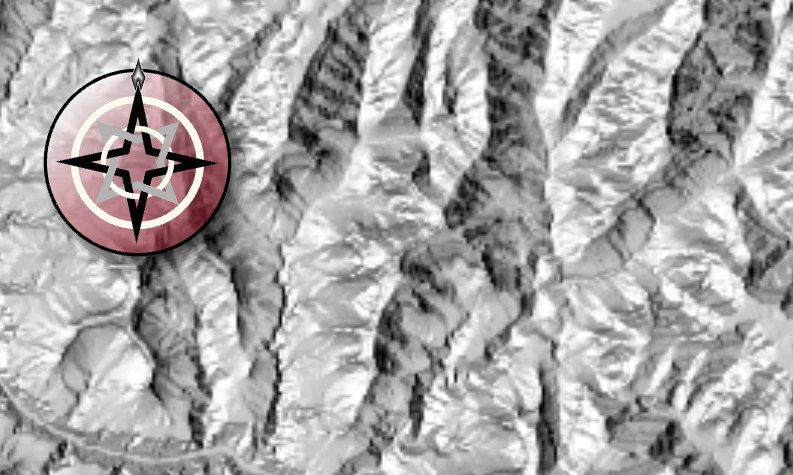
A shadow suits a circle well. It gives the disc a more three-dimensional look, as if the compass were a medallion resting on the map:
| Control | Explanation |
|---|---|
| Color | The color of the shadow. Black or a dark gray is usual. |
| Opacity | How dark the shadow is at its darkest, from 0 to 100%. |
| Angle | The direction the light comes from. The shadow falls on the opposite side. Click or drag on the dial to point it at the light, or type the angle in degrees, measured counterclockwise from east: 90 is light from the top, and 135 is light from the upper left, the usual choice on a map. |
| Distance | How far the shadow is shifted away from the light. A larger distance makes the circle appear to float higher. 0 leaves the shadow directly underneath, showing evenly on all sides as a soft glow. |
| Spread | How much of the soft edge is made solid. 0 gives the softest edge. 100 gives a hard-edged shadow. |
| Size | The width of the soft edge. 0 gives a hard edge with no softening at all. |
| Layers | The number of pieces the soft edge is built from, 1 to 60. More layers give a smoother edge. |
Distance and Size are in points on a layout, and in the units of the map's coordinate system on a map.
How the shadow is made. ArcGIS Pro graphics cannot be blurred, so the soft edge is built from a stack of plain polygons. Each is a copy of the circle's outline, shifted away from the light, with a solid fill that is mostly transparent. The copies are made in a graded series of sizes, the largest a little bigger than the outline and the smallest a little smaller. Where more of them overlap, the shadow is darker, so it fades smoothly from nothing at its outer edge to the full opacity inside. The opacity of each copy is worked out so that the darkest part is exactly the opacity you asked for, however many layers you choose.
The shape of the circle itself is cut out of every layer. The shadow therefore lies around the background and never underneath it, and a partly transparent background keeps its own color and is not darkened by its shadow.
The shadow's layers are ordinary polygon graphics. They are grouped together, and that group sits below the circle inside the new group.
What you get
One new circle graphic, placed behind the selected elements, and one new group that holds the circle and everything that was selected, along with the drop shadow if one was asked for. Because they are grouped, the background and its contents move, resize and copy together.
The circle is an ordinary ArcGIS Pro graphic. Nothing about it is special once it is drawn, so it can be edited by hand like any other: select it and use the Element pane to change its symbol, its size, its position or its name.
Nothing else is altered. The selected elements keep their own symbols, sizes and positions.
The tool remembers your choices
After a successful run, the symbol and every setting in the dialog are stored with the project, so the next background starts where the last one left off and a set of backgrounds comes out matching. Each of the four Graphic Background tools keeps its own settings. The graphic name is never remembered. The settings are saved when the project is saved.
Recommended citation
Credits
By Jeff Jenness, Jenness Enterprises (www.jennessent.com).
Licensing information
Works at every ArcGIS Pro license level (Basic, Standard, Advanced). No extension licenses are required.
Related tools and pages
- Manage Custom Graphics and North Arrows — register your own images and set their focal points.
- Add Graphics — compass graphics and your own images, each placed with a focal point.
- North Arrows — the same artwork as a north arrow that turns with the map.
- Rectangle Background — a rectangle behind the selection, with square or rounded corners.
- Polygon Background — a background that follows the actual shape of the selected elements.
- Minimum Convex Polygon Background — the tightest convex outline around the selected elements.
- Create Shadow Polygons — a soft shadow of fading rings around the polygons of a feature class, where these tools shadow graphics.