
Create Shadow Polygons
Summary
Builds a set of concentric rings around polygons, each ring a little more transparent than the one inside it. Drawn in black beneath the polygons they surround, the rings read as a soft shadow or glow that fades out with distance. The effect lifts a study area, a park or a county off the map without a hard outline. The shadow has the same controls as the drop shadow of the Graphic Background tools: a size and a spread for its soft edge, and a distance and a light direction to shift it to one side.
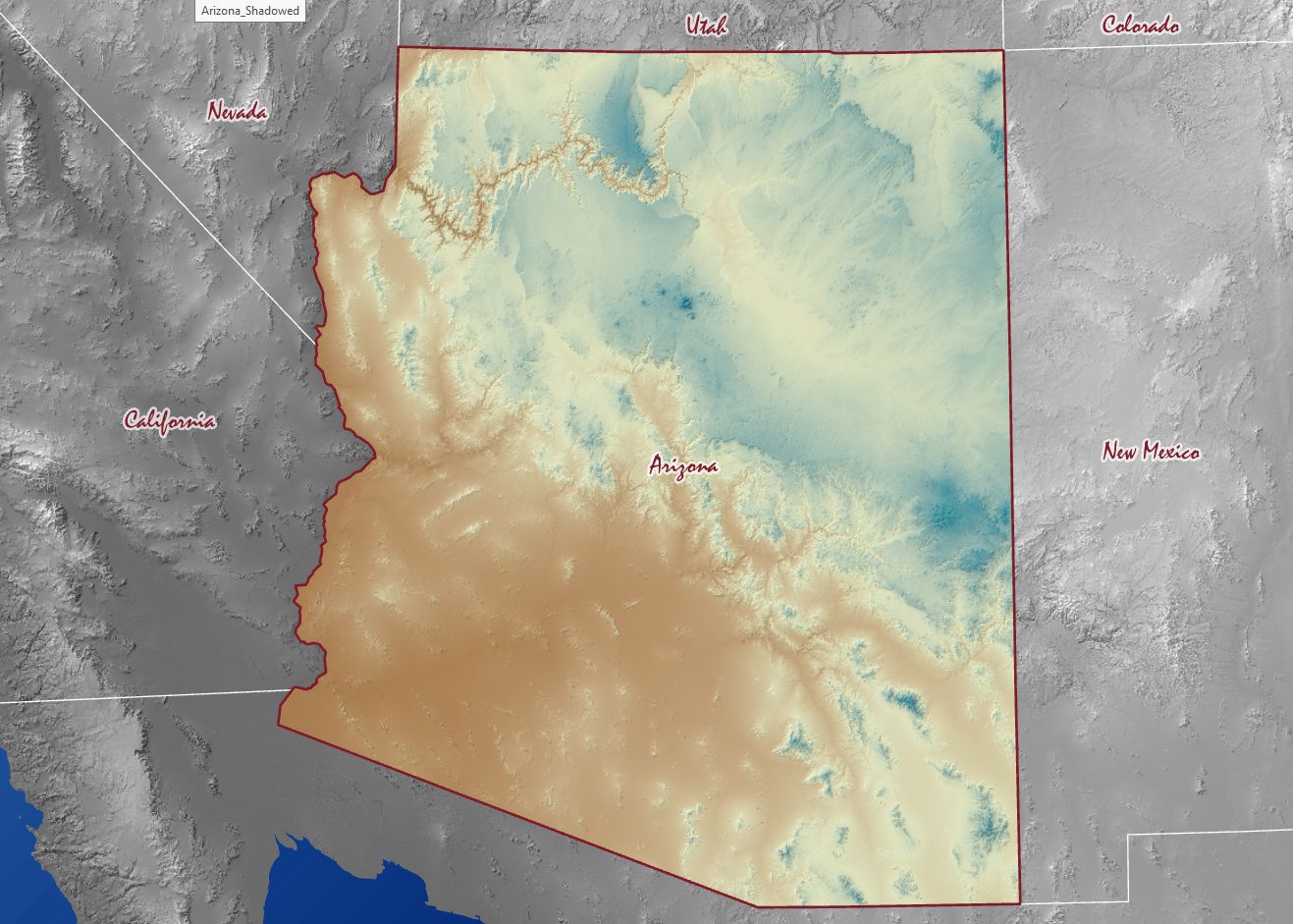
For example, I often like to emphasize my area of interest by putting it in color and the rest of the landscape in black and white, as in this map of Arizona:
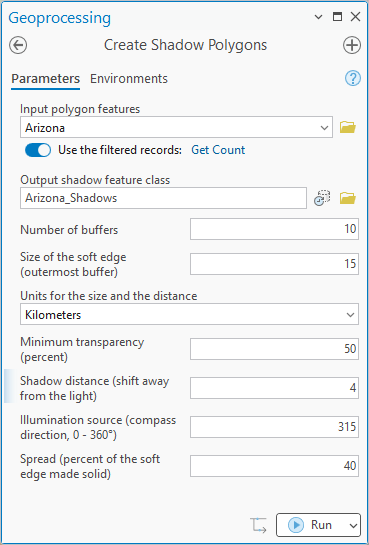
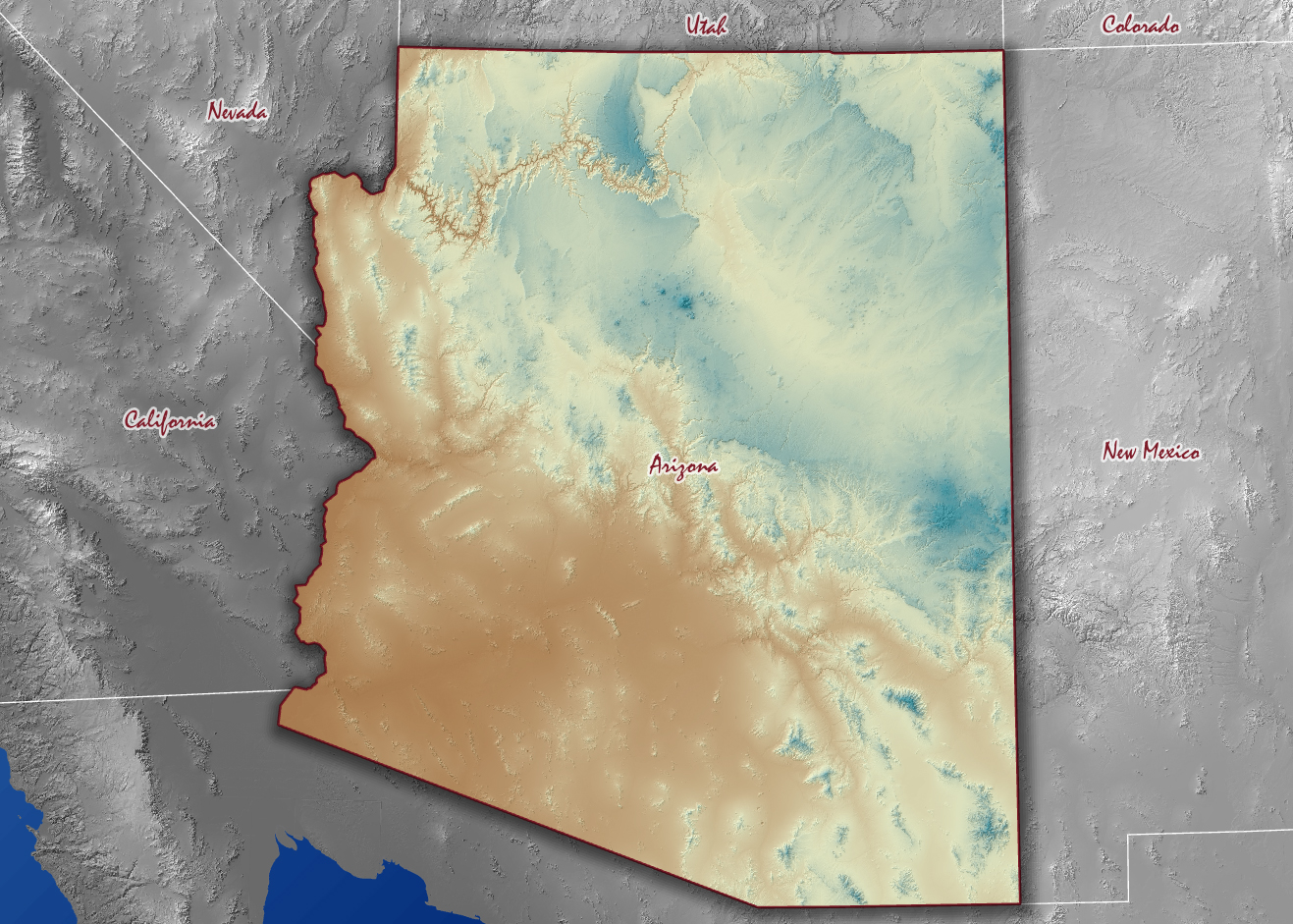
To really make Arizona pop, I like to add a shadow around it, and that is what this tool does. For Arizona I set the shadow to reach 15 kilometers from the border, though I could also have given the size as a proportion of the width or height of the region's extent, and shifted it a little to the southeast, away from a light in the northwest:
How it works
The input polygons are first merged into a single shape. If the input layer has a selection, only the selected polygons are used; otherwise all of them are, and a definition query on the layer is honored either way. The tool then builds the requested number of rings outward from that shape, all of the same width, so that the last one ends at the distance you give for the outermost.
Before the rings are built, the merged outline is simplified slightly, by a tenth of the width of one ring, to keep the output small. The rings are therefore approximate. They are meant for cartographic effect and not for analysis.
The rings make up the shadow's soft edge, a band of the width you give as the size. Each ring is given a transparency, and the values fall from nearly 100% at the outer edge of the band to the minimum transparency at its inner edge, along the same S-shaped curve the Graphic Background tools use for their drop shadows: the change is gentle at both ends of the band and quickest in the middle, which is what makes the edge look soft. With 10 rings and a minimum of 50, the rings are 50, 51, 55, 61, 68, 75, 82, 89, 95 and 99% transparent, from the inside out. The merged source polygon is written too, with a transparency of 100, so it is invisible and the features it came from show through, and it is cut out of every ring, so no part of the shadow lies under the source.
Three controls place the band and shift the shadow, and all three have defaults that reproduce what the tool did before it had them:
- Spread is how much of the soft edge is made solid. At 50%, the default, the whole band lies outside the source's outline, a glow. At 0%, the band is centered on the outline, half of it inside; the inner half shows only where the shadow has been shifted out from under the source. At 100% the shadow is hard-edged and grown by the size.
- Shadow distance shifts the whole shadow away from the light. At 0, the default, the shadow is centered on the source. With a distance, it becomes a drop shadow, showing on the side away from the light.
- Illumination source is the compass direction the light comes from, 0 to 360 degrees clockwise from north: 0 is light from the north, 90 from the east, and 315, the default, from the northwest, the usual choice on a map. The shadow falls on the opposite side. The direction matters only when the distance is more than 0.
The size and the distance share one choice of units: a proportion of the width or height of the polygons' extent, or a distance in meters, kilometers, feet or miles. For data in a geographic (latitude/longitude) coordinate system the rings are built geodesically and the shift is measured along the ground.
What you get
One polygon feature class holding the rings and the merged source polygon, with two fields:
| Field | Value |
|---|---|
| Transparency | The transparency of the ring, in percent. Named Transp_Pct in a shapefile. |
| Buffer_Size | The distance of the ring's outer edge from the shadow's outline, in meters: negative for a ring that lies inside the outline, and 0 for the merged source polygon itself. The shadow's outline is the source polygon's outline, shifted by the shadow distance. Named BufferSize in a shapefile. |
The output is added to the map already symbolized: a black fill whose transparency is taken from the Transparency field. A layer file with that symbology is saved beside a shapefile output, or in the folder that holds the output's geodatabase, so the fade can be put back on the layer, or on a copy of it, at any time. If the output is written to the memory workspace, which has no folder, the layer file goes to ArcGIS Pro's scratch folder instead, and the layer on the map is symbolized from there. An in-memory feature class is temporary by nature, gone when the session ends, so its layer file should be expected to be temporary too. Place the layer below the polygons it shadows. The Output Coordinate System environment is honored.
Black is only a start. The layer's color can be changed to anything else in the Symbology pane, a dark blue for a shadow on water or a pale yellow for a glow, and the transparency stays bound to the field, so the fade is kept.
How it compares with Esri's Multiple Ring Buffer
This tool belongs to the same family as the Multiple Ring Buffer tool in the Analysis toolbox, and it uses the same methodology: rings built outward from a set of polygons. The difference is what the rings are for.
Multiple Ring Buffer is built for analysis. You list the distances you want, and it writes a ring for each, with a distance field, so that features can be counted or summarized by how far they lie from the source. The distances are typically meaningful ones: 100, 500 and 1000 meters from a stream, for example. Nothing about the rings says how they should be drawn.
Create Shadow Polygons adapts that method to a purely aesthetic end. The rings are many, thin and equal, their distances chosen only for how the fade looks, and each one carries the transparency it should be drawn with. The output arrives on the map already symbolized as a shadow, and the outline is simplified before buffering because the rings only need to look right, not to measure anything. One more difference: this tool can move the whole stack of rings away from a light in a chosen direction, so the shadow falls to one side as a real one would, which rings made for measuring distance have no reason to do. For an analysis of distance, use Esri's tool. For a shadow or a glow behind a study area, use this one.
Parameters
| Label | Explanation | Data type |
|---|---|---|
| Input polygon featuresRequired · in_features | The polygons to shadow. A selection on the layer is honored. | Feature Layer |
| Output shadow feature classRequired · out_fc | The rings and the merged source polygon. The dialog
suggests the input's name with _Shadow
added. |
Feature Class |
| Number of buffersRequired · num_rings | How many rings to build, at least 1 (default 10). More rings give a smoother fade. | Long |
| Size of the soft edge (outermost buffer)Required · size_value | The width of the soft edge, in the units below (default 0.25). With the default spread it is how far the shadow reaches beyond the polygons. | Double |
| Units for the size and the distanceRequired · size_units | Proportion of extent width (the default), Proportion of extent height, Meters, Kilometers, Feet or Miles. With the defaults, the shadow reaches a quarter of the width of the polygons' extent. | String |
| Minimum transparency (percent)Required · min_transparency | The transparency of the innermost ring, from 0 to less than 100 (default 50). A lower value gives a darker shadow next to the polygons. | Double |
| Shadow distance (shift away from the light)Optional · distance_value | How far the shadow is shifted away from the light, in the same units as the size. 0, the default, leaves it centered on the polygons. | Double |
| Illumination source (compass direction, 0 - 360°)Optional · angle | Where the light comes from, as a compass direction: 0 is the north, 90 the east, 315 (the default) the northwest. The shadow falls on the opposite side. Used only when the distance is more than 0. | Double |
| Spread (percent of the soft edge made solid)Optional · spread | 0 to 100. 50, the default, puts the whole soft edge outside the polygons' outline; 0 centers it on the outline for the softest edge; 100 gives a hard-edged shadow. | Double |
Python
import arcpy
arcpy.ImportToolbox(r"C:\path\to\JennessEnterprisesTools.pyt")  # your install path
arcpy.jenness.ShadowPolygons(
    in_features=r"D:\data\project.gdb\study_area",
    out_fc=r"D:\data\project.gdb\study_area_shadow",
    num_rings=10,
    size_value=0.1,
    size_units="Proportion of extent width",
    min_transparency=40,
    distance_value=0.05,   # a drop shadow: shifted a twentieth of the width
    angle=315,             # away from a light in the northwest
    spread=0)              # the softest edge
Recommended citation
Credits
By Jeff Jenness, Jenness Enterprises (www.jennessent.com). A modernized port of the shadow polygon routine from the Springs Stewardship Institute (SSI) tools for ArcMap.
Licensing information
Works at every ArcGIS Pro license level (Basic, Standard, Advanced). No extension licenses are required.
Related tools and pages
- Remove SLC — move the Service Layer Credits text out of a layout's map frame.
- Rectangle Background — a panel with a soft drop shadow behind layout elements and graphics.
- Circle Background — a circle behind selected graphics, with the same optional drop shadow.
- Polygon Background — a background that follows the shape of the selected graphics, with the same optional drop shadow.
- Minimum Convex Polygon Background — the tightest convex outline around the selected graphics, with the same optional drop shadow.