
Manage Custom Graphics and North Arrows
Summary
Registers your own images as graphics and north arrows, so they appear in the add-in's Add Graphics and North Arrows galleries beside the built-in ones. Once an image is registered, a company logo, an agency seal or a favorite north arrow goes onto a map or layout with one click, with no browsing for the file each time. The same window sets each image's focal point, the point that the Circle Background tool can center its circle on.
Opening the window
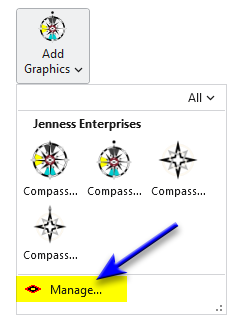
On the ribbon, Add Graphics and North Arrows are each a button over a gallery. Click the arrow under either button to open its gallery, then click Manage... at the foot of the gallery.
The window has two tabs, Graphics and North Arrows, and it opens on the tab of the gallery it was called from. The two tabs work the same way, and each keeps its own list. An image registered on the Graphics tab appears in the Add Graphics gallery only. To have the same image in both galleries, register it on both tabs.
The North Arrows button and its gallery are available only while a layout view is active, because a north arrow belongs to a layout. The window itself does not block ArcGIS Pro while it is open, so the map or layout can be worked on with the window beside it.
Registering an image
This example registers a logo as a graphic.
- Click Add Image..., below the list.
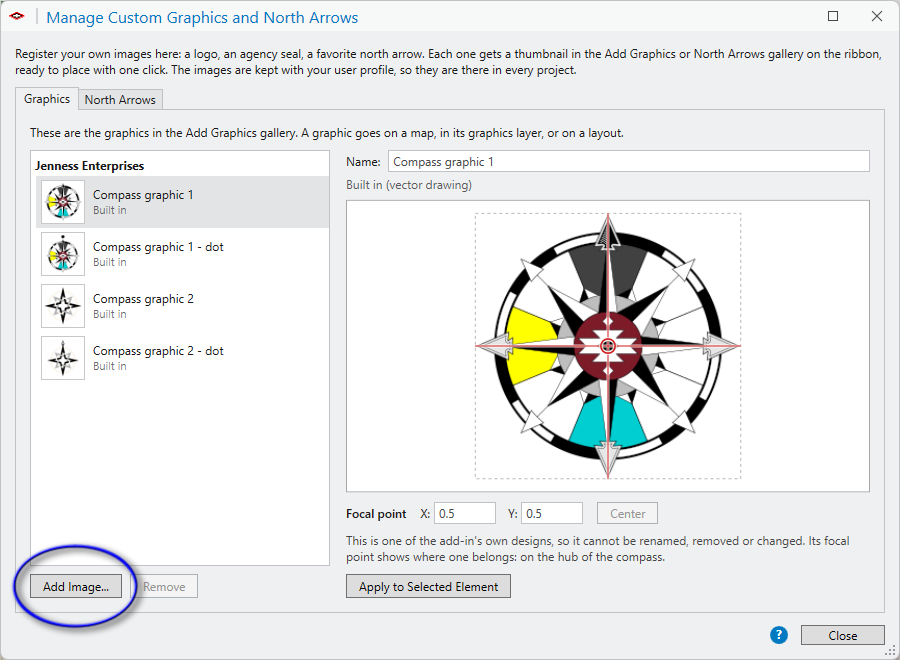
- Browse to the image and click Open. Several images can be selected and registered at once. PNG, JPEG, BMP, GIF, TIFF, SVG and EMF files can be registered.
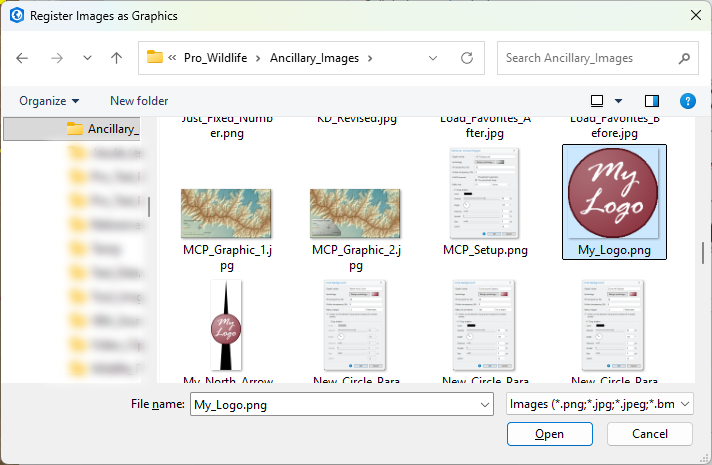
- The image is added to the list, in a section of its own below the built-in designs, and it is selected. The line at the bottom of the window says which gallery it has gone into.
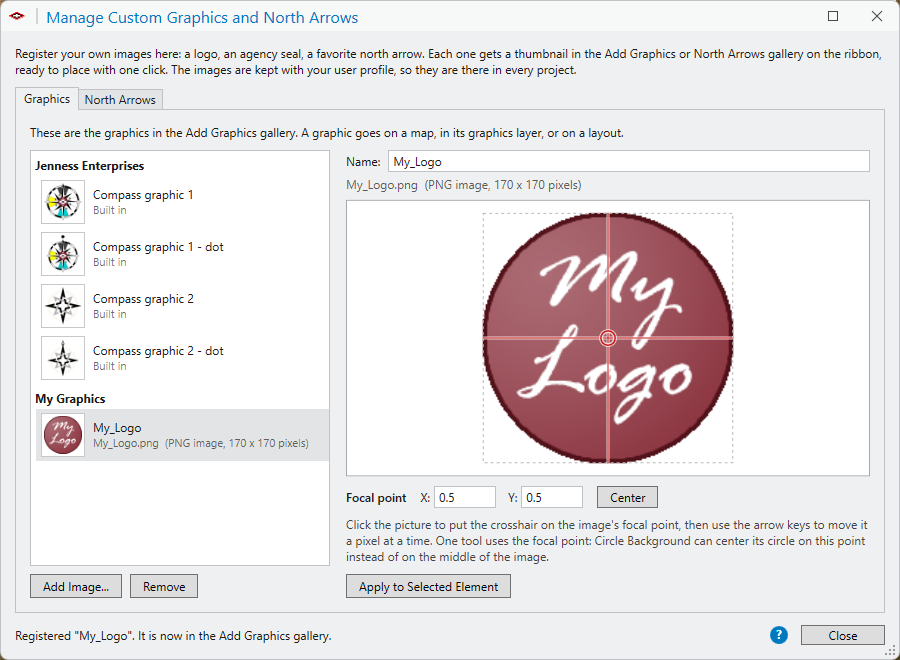
Each image is named after its file. To change the name, type a new one in the Name box and press Enter. The name is shown under the image's thumbnail in the gallery, and it is the name given to the graphics and north arrows placed from the image. If the name is already in the gallery, a number is added to it.
Remove takes the selected image out of the gallery, after asking. Graphics and north arrows that were already placed from it are not touched.
The add-in keeps its own copy of every registered image with
your user profile, in the folder
%LOCALAPPDATA%\JennessEnterprises\WildlifeTools\CustomGraphics.
The images are therefore available in every project, and the
original file can be moved or deleted afterwards.
Placing a registered image
The registered image now has a thumbnail in the gallery. Open the gallery and click it:
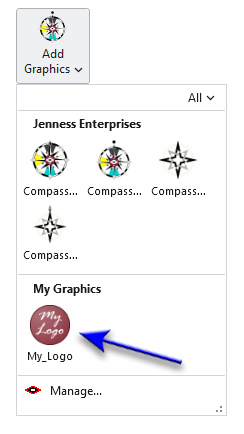
Then draw a box on the map or the layout where the graphic should go, or click once to place it at a default size:
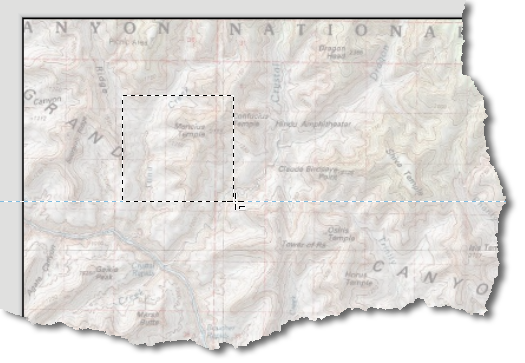
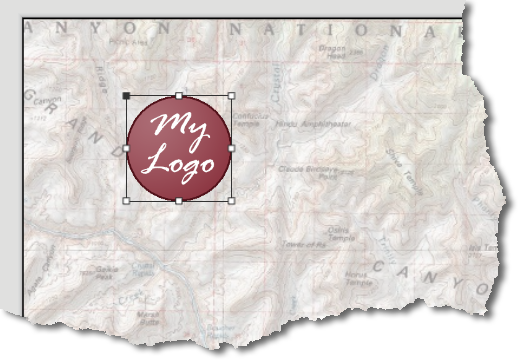
The Add Graphics page has the details of placing a graphic.
Registering a north arrow
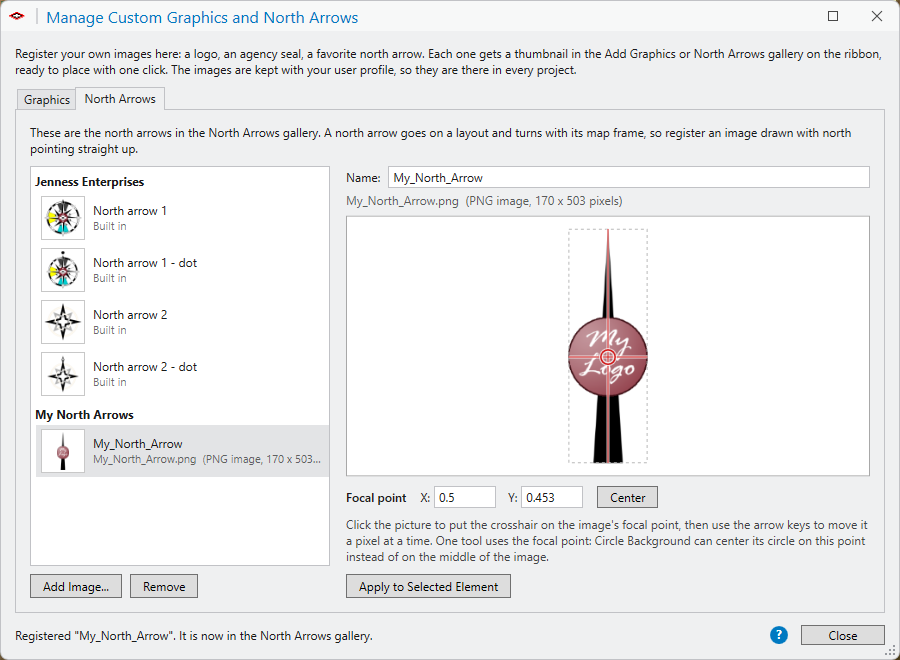
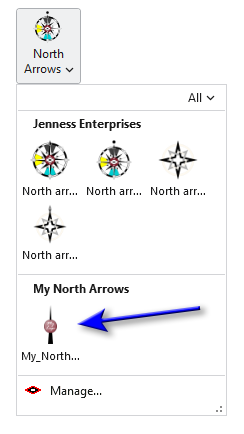
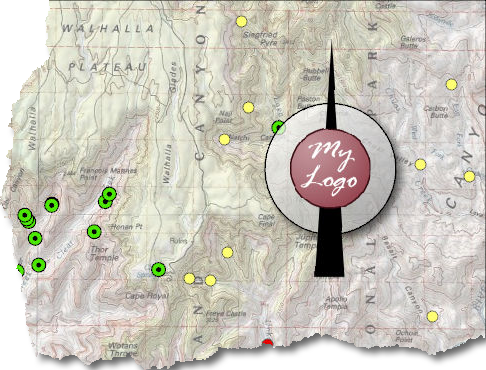
A north arrow is registered the same way, on the North Arrows tab. With a layout view active, open the North Arrows gallery, click Manage... at its foot, click Add Image... and browse to the image. The figure at the top of this page shows the result.
The new north arrow is then in the North Arrows gallery. Click it there, and click the layout, or draw a box on it, to place the north arrow:
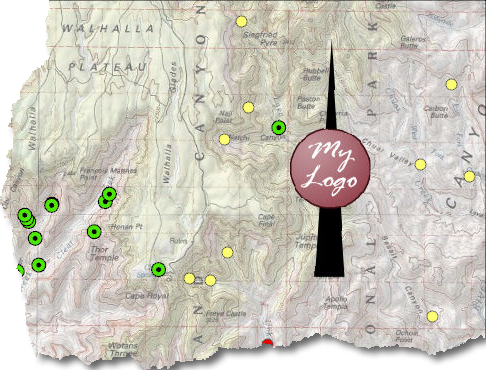
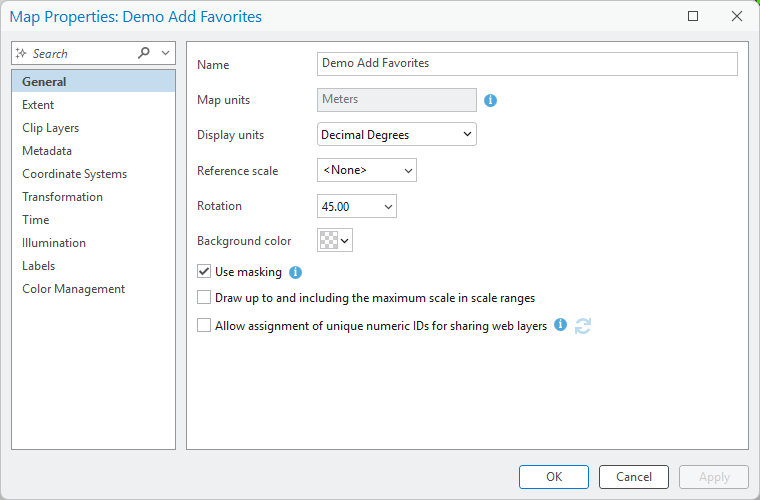
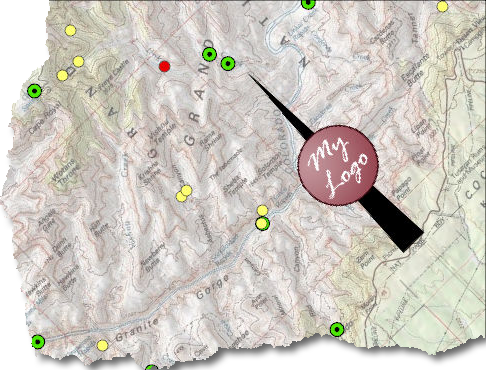
It is a real north arrow, so it turns with the map. Here the map's rotation is set to 45 degrees, and the north arrow follows:
The North Arrows page has the details of placing a north arrow.
Setting the focal point
Every registered image has a focal point: the spot that counts as its center. The current version of this add-in only has one tool that uses this focal point, so it only matters if you plan to use the Circle Background tool and you want a circle centered on that focal point. The Circle Background tool draws a circle behind a selected graphic or north arrow, and it can center the circle on the focal point instead of on the middle of the element.
The two are often not the same place. In the north arrow shown on this page, the logo sits below the middle of the image, because the point above it is longer than the tail below it. In a compass rose, the hub is below the middle when the north point is longer than the others or lettering sits above it. If you want a circle centered on a particular spot of your image, such as the logo or the hub, that spot has to be registered here as the image's focal point. If you never use Circle Background on the image, the focal point can be left where it is.
The window shows a preview of the selected image with a crosshair on it. There are three ways to move the crosshair:
- Click the preview, or drag across it.
- After a click, use the arrow keys to move the crosshair one pixel of the preview at a time. Hold Shift to move it ten pixels at a time. The dashed edge of the preview turns red while the arrow keys act on it.
- Type in the X and Y boxes below the preview and press Enter. The position is measured as fractions of the image's width and height from its lower-left corner, so each box takes a number from 0 to 1.
Center puts the focal point back in the middle. A new image starts with its focal point at the center, which is right for most symmetrical designs.
Every graphic or north arrow placed from a registered image carries the image's focal point with it. The focal point moves and scales with the element, so it stays on the same spot of the picture however the element is resized.
Changing a focal point later
Select the image again and move the crosshair. Graphics placed from then on use the new focal point. Graphics that are already on a map or layout keep the focal point they were placed with. To update one of those, select it on the map or layout and click Apply to Selected Element. If several elements are selected, all of them get the focal point.
Apply to Selected Element works on any element, not only on one placed from a registered image. It is therefore also the way to give a focal point to a picture or graphic that was put on the layout by other means.
The built-in graphics
The add-in's own compass graphics and north arrows are listed in the window too, at the top of each list, with their focal points shown as examples of where a focal point belongs. They cannot be renamed, removed or changed.
Recommended citation
Credits and references
By Jeff Jenness, Jenness Enterprises (www.jennessent.com).
The basemap under the maps in the figures on this page is Esri's USA Topo Maps basemap (copyright © 2013 National Geographic Society, i-cubed).
- Esri. 2026. USA Topo Maps [basemap]. ArcGIS Online, Esri, Redlands, California. arcgis.com/home/item.html?id=99cd5fbd98934028802b4f797c4b1732. Accessed on 18 October 2026.
Licensing information
Works at every ArcGIS Pro license level (Basic, Standard, Advanced). No extension licenses are required.
Related tools and pages
- Add Graphics — places a graphic from the gallery on a map or a layout.
- North Arrows — places a north arrow from the gallery on a layout.
- Circle Background — draws a circle behind a graphic, centered on its focal point if you choose.