

Remove SLC
Summary
Moves the Service Layer Credits text out of the map frame on a layout, with one click.
Esri introduced the service layer credits in ArcMap 10.1. They are a terrific way to make sure you cite and credit your source data without lifting a finger: when a map uses a basemap or another web service, ArcGIS prints the service's credits in a corner of the map frame, and it does so without even asking. If you like them, then by all means keep them. Citing your sources is both ethical and courteous to the people who created the data. The citation does not have to sit on the map itself, though. A credit in the caption, or in the text of the document that carries the map, serves the same purpose; that is how the figures on these help pages credit their basemaps.
This automatic text has not been universally popular, though. Many people were upset that Esri had decided to add text of its own, unasked for, to a carefully made map, and more upset because the text was so ugly and intrusive, printed over whatever part of the map happened to lie in that corner.
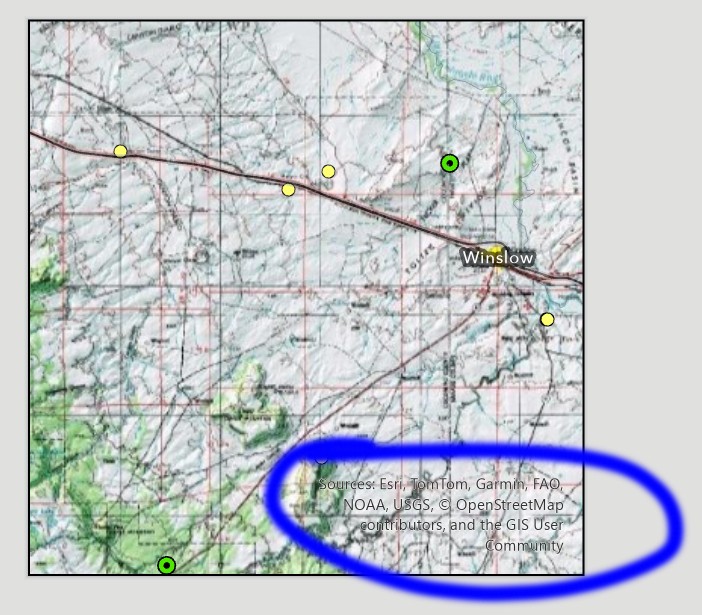
There are ways to get rid of it yourself. Both start the same way: add a Service Layer Credits dynamic text element to the layout. As soon as that element exists, the credits go into it instead of the map frame, and the element is yours to style and move. You can then set its text to be transparent, or drag it off the page. All this tool does is automate the second of those. It turns the text that ArcGIS Pro has stuck in your map into a movable dynamic text element and parks it just below the layout page, where it does not print or export with the map.
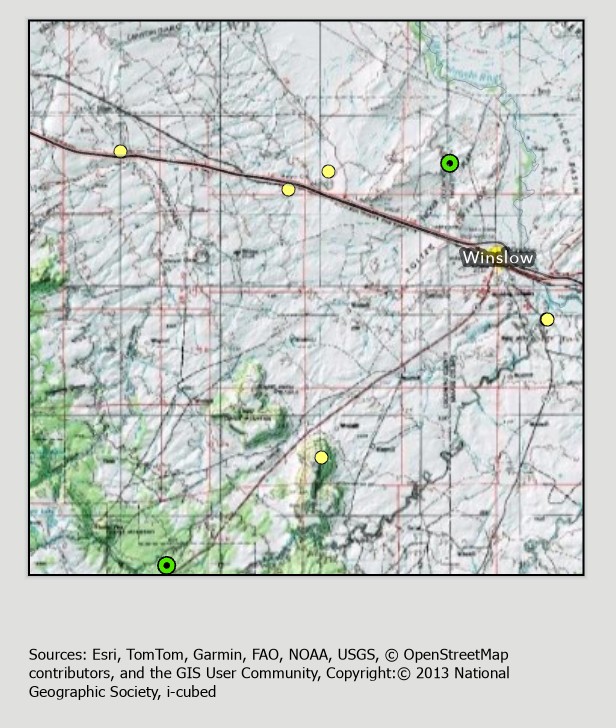
To have the credits back in their original form, select the Service Layer Credits element and delete it. The credits reappear in their original place in the map frame.
How it works
ArcGIS Pro draws the credits inside the map frame only when the layout has nowhere else to put them. If the layout contains a Service Layer Credits dynamic text element, the credits go there. The tool adds that element to the layout and parks it just below the page: its top edge is half an inch below the bottom of the page and its left edge is flush with the left side of the page. The element is a text box as wide as the page and one inch tall, set in 8-point black Tahoma, and it is named Service Layer Credits in the Contents pane. The credits are still part of the layout, but they are off the page, so they do not print or export, and the map frame is clear.
If the layout already has a Service Layer Credits element, the tool moves that one to the same spot, wherever it was, and does not add a second. Running the tool twice does no harm.
Usage
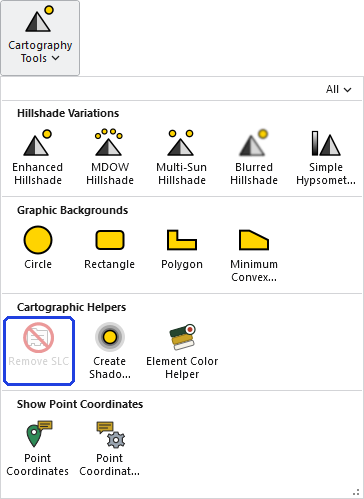
Open the layout and click Remove SLC. There is no dialog. The button is available only when a layout view is active.
To put the credits somewhere visible instead, select the Service Layer Credits element in the Contents pane, then drag it onto the page or set its position in its properties.
Recommended citation
Credits and references
By Jeff Jenness, Jenness Enterprises (www.jennessent.com).
The basemap under the maps in the figures on this page is Esri's USA Topo Maps basemap (copyright © 2013 National Geographic Society, i-cubed).
- Esri. 2026. USA Topo Maps [basemap]. ArcGIS Online, Esri, Redlands, California. arcgis.com/home/item.html?id=99cd5fbd98934028802b4f797c4b1732. Accessed on 18 October 2026.
Licensing information
Works at every ArcGIS Pro license level (Basic, Standard, Advanced). No extension licenses are required.
Related tools and pages
- Create Shadow Polygons — fading rings around polygons, for a soft shadow or halo.
- Rectangle Background — a panel behind a legend, a scale bar or other layout elements.