

Sudoku
Summary
A Sudoku puzzle in a window of its own, for the minutes when a long tool is running or a problem needs to be left alone for a while. The window does not block ArcGIS Pro, so the puzzle can sit beside the map and be picked up and put down. Every puzzle it makes has exactly one solution.
The rules
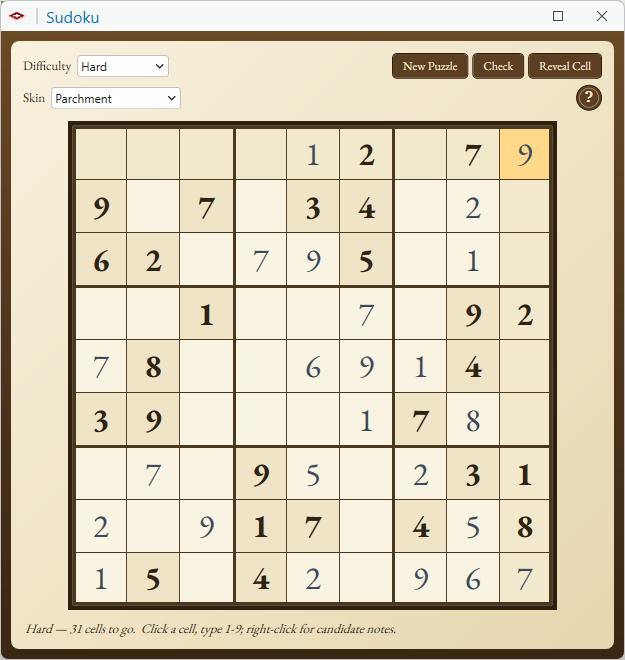
Fill the grid so that every row, every column and every one of the nine 3-by-3 boxes holds each of the digits 1 to 9 exactly once. The digits printed in bold are given and cannot be changed.
Playing
| To do this | Do this |
|---|---|
| Choose a cell | Click it, or move with the arrow keys. The arrows wrap around from one edge to the opposite one. Tab moves to the next cell in reading order and Shift+Tab to the one before. |
| Enter a digit | Type 1 to 9, on the number row or the number pad. |
| Clear a cell | Press 0, Delete or Backspace. |
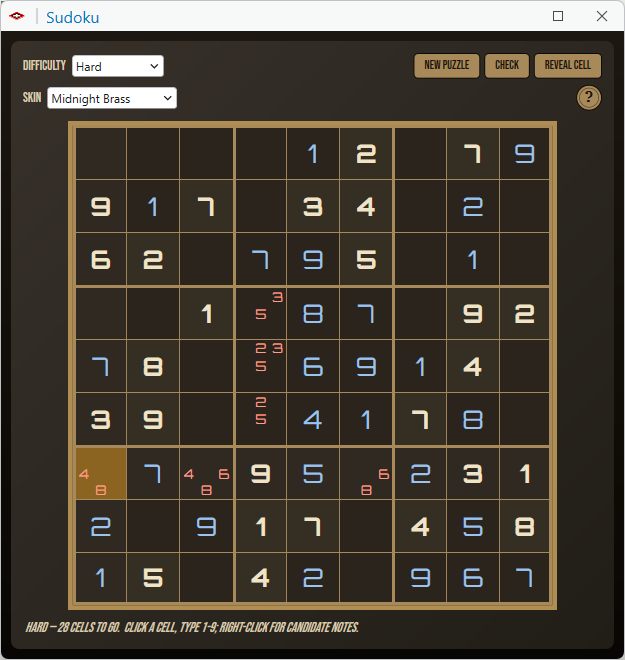
| Note the candidates | Right-click an empty cell. A menu lists Note 1 to Note 9: click each digit that could still go in that cell, as many as you like, then click away from the menu. Each noted digit is drawn small and in red in its own place in the cell, from 1 at the top left to 9 at the bottom right. Clear this cell's notes, at the bottom of the menu, removes them, and so does entering a digit in the cell or clearing it. |
The selected cell is highlighted, and its row and column are tinted to help you scan them.
The controls
| Control | Explanation |
|---|---|
| Difficulty | Easy, Medium or Hard. Harder puzzles start with fewer digits given: about 40 of the 81 for Easy, 32 for Medium and 26 for Hard. The choice applies to the next new puzzle. |
| New Puzzle | Starts a fresh puzzle. If you have made progress on the current one, it asks first. |
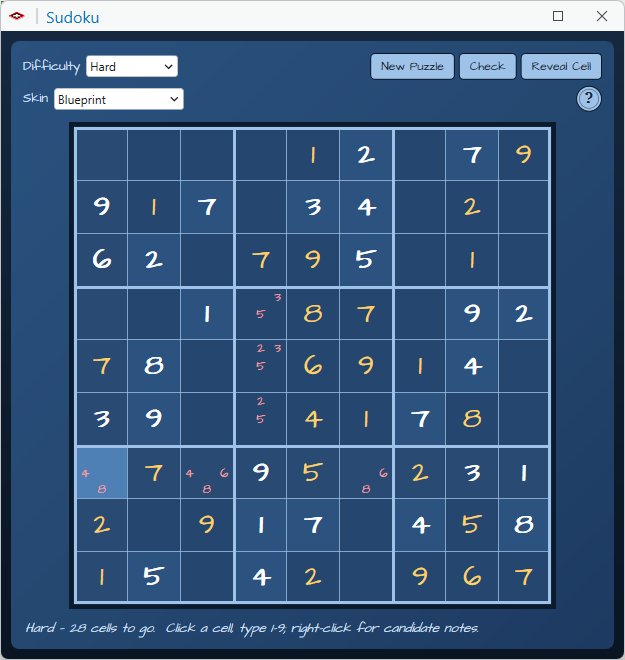
| Check | Colors the digits you have entered: blue for correct and red for incorrect, or green and red in the Blueprint skin. The color clears from a cell when you change it. |
| Reveal Cell | Fills the selected cell with its correct digit, after asking, and colors it as a correct entry. A given cell has nothing to reveal, and the window says so. |
| Skin | The look of the window: Parchment, Midnight Brass or Blueprint. Each has its own colors and lettering. The rules and the puzzle do not change. |
Fill the last cell correctly and the board celebrates, and then stays as it is until you start a new puzzle. Fill it with a mistake somewhere and the window tells you the board is full but not right, and points you to Check. The line under the board shows the difficulty and how many cells are left to fill.
The window remembers your skin and difficulty for next time. It does not remember the puzzle: closing the window ends the game, and the window opens next time with a new one. The window can be resized, and the board scales with it.
Recommended citation
Credits
By Jeff Jenness, Jenness Enterprises (www.jennessent.com).
Licensing information
Works at every ArcGIS Pro license level (Basic, Standard, Advanced). No extension licenses are required.
Related tools and pages
- Sliding Puzzle — a tile puzzle made from your own map.
- Thought for the Day — a quotation in a card.
- ArcMap Easter Egg — a small piece of ArcMap history.