

Sliding Puzzle
Summary
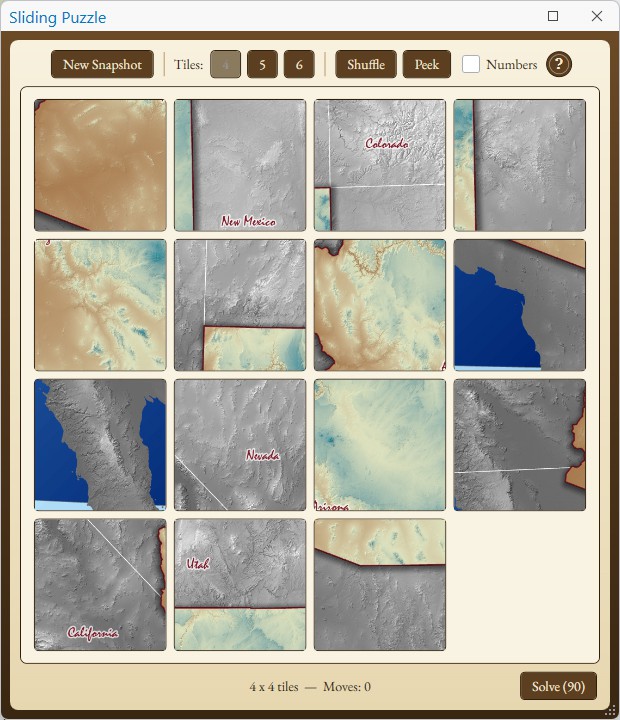
Turns a picture of your own map or layout into a sliding-tile puzzle. The tool takes a snapshot of the active view, cuts it into tiles, removes the one in the lower right corner, and scrambles the rest. Slide the tiles back into place to rebuild the picture. Every scramble can be solved.
Where the picture comes from
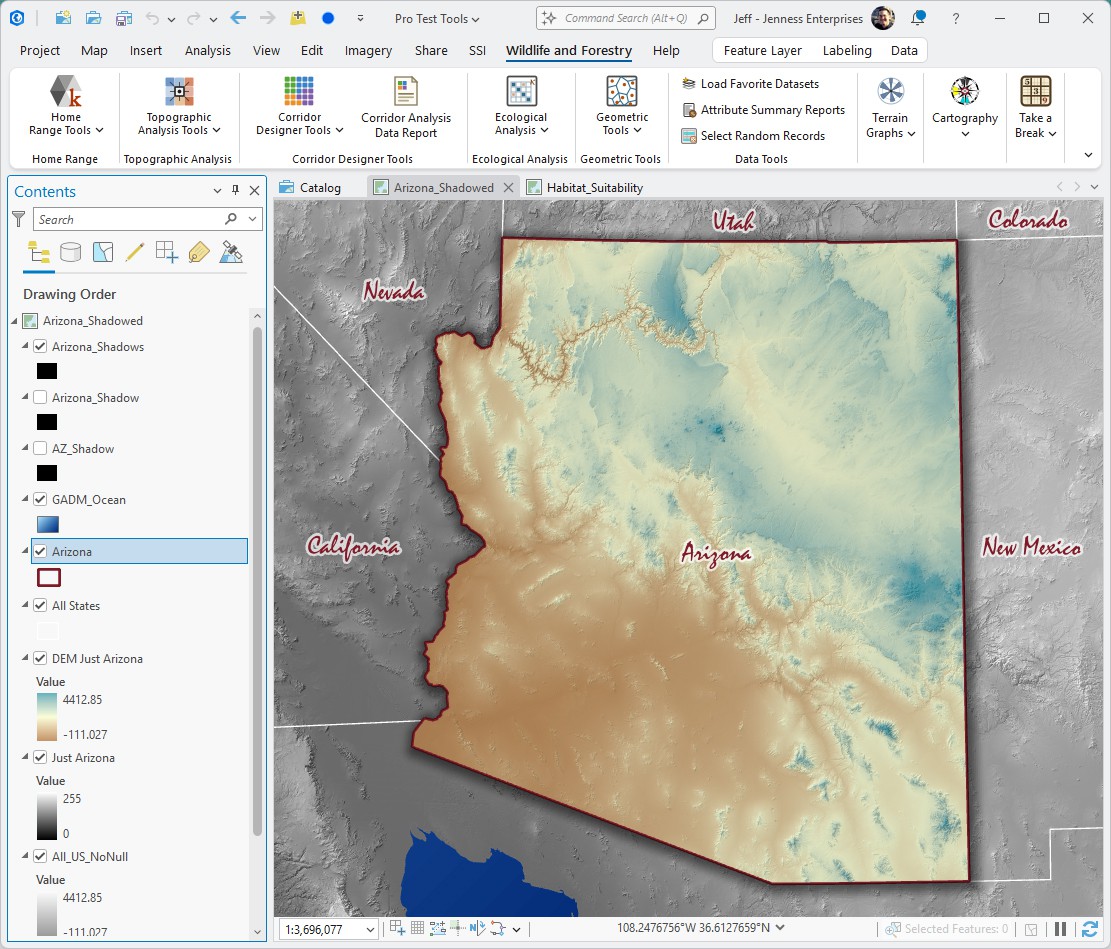
The snapshot is taken from whichever view is active when the window opens. If the active view is neither a map nor a layout, the window says so: make one active and click New Snapshot.

- A map. The picture is the largest square that fits in the middle of the map view, cut into 4-by-4, 5-by-5 or 6-by-6 tiles.
- A layout. The picture is the whole page. You choose 4, 5 or 6 tiles along the short edge, and the number along the long edge is worked out to match. The tiles are exactly square, so a thin strip along the edges of the page can be left out of the picture.
The window does not block ArcGIS Pro and can be resized. The puzzle scales to fit. Clicking the ribbon button while the window is open brings it to the front with the same puzzle. It does not take a new picture.
The controls
| Control | Explanation |
|---|---|
| New Snapshot | Takes a fresh picture of the current map or layout view and starts over. |
| Tiles: 4, 5, 6 | The number of tiles along the short edge. The label reads Tiles for a map and Tiles (short edge) for a layout. More tiles make a harder puzzle. Choosing a different number cuts the same picture again and scrambles it. |
| Shuffle | Scrambles the tiles again and sets the count of moves back to zero. |
| Peek | Shows the finished picture over the board. The button then reads Hide; click it to go back to the puzzle. |
| Numbers | An easier mode: a number in the lower right corner of each tile shows where it belongs, counting across each row from 1 at the top left. |
| Solve | In the lower right corner. It shows how many moves its solver needs from the current position, and each click makes one of those moves, so clicking until the count runs out finishes the puzzle for you. The solver's route is a sound one but not necessarily the shortest. Its moves are counted along with your own. When the puzzle is finished the button reads Solved. |
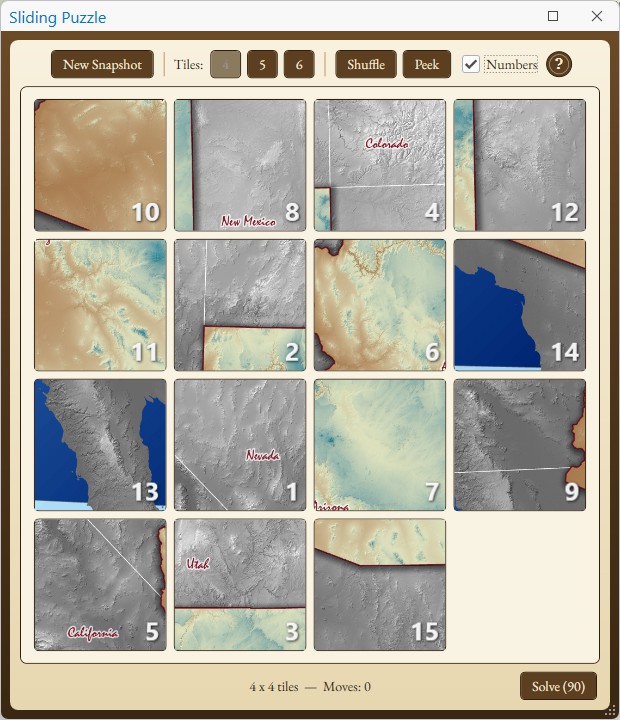
Click a tile beside the empty space to slide it. The line under the board counts the moves as you go. When the last tile is home, the missing piece fades back in and the window reports how many moves it took.
Recommended citation
Credits
By Jeff Jenness, Jenness Enterprises (www.jennessent.com).
Licensing information
Works at every ArcGIS Pro license level (Basic, Standard, Advanced). No extension licenses are required.
Related tools and pages
- Sudoku — a number puzzle, in three looks.
- Thought for the Day — a quotation in a card.
- ArcMap Easter Egg — a small piece of ArcMap history.